
Main menu & command palette
AgentMux groups global actions into two surfaces:
- The hamburger menu (≡) at the start of the top tab bar — mouse-friendly, organized by category.
- The command palette (
Ctrl+Shift+P/⇧⌘P) — keyboard-driven, searchable list of every registered command.
Hamburger menu (≡)
Section titled “Hamburger menu (≡)”Click the three-line icon at the start of the tab bar. Items, top to bottom:
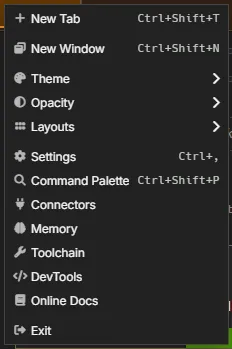
| Item | Shortcut | What it does |
|---|---|---|
| New Tab | Ctrl+Shift+T / ⌘T | Adds a new tab to the current window. |
| New Window | Ctrl+Shift+N / ⇧⌘N | Opens a second AgentMux window — fully isolated tabs/state from the first. It starts with this window’s theme and opacity. See Running multiple instances. |
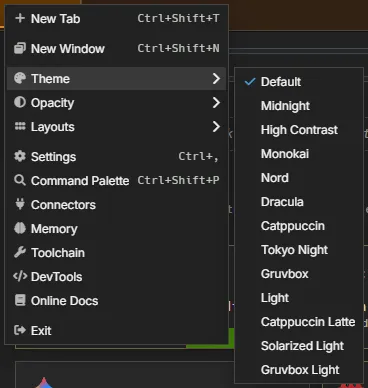
| Theme | — | Submenu listing the available color themes. It changes only this window, and the choice is saved with the window. Settings ▸ Appearance sets the default for windows without their own. See Window appearance. |
| Opacity | — | Submenu of preset levels (35% – 100%). It changes only this window, on Windows, macOS and Linux. It is the same value as this window’s slider in the status bar’s Instance Panel, so each follows the other. See Window appearance. |
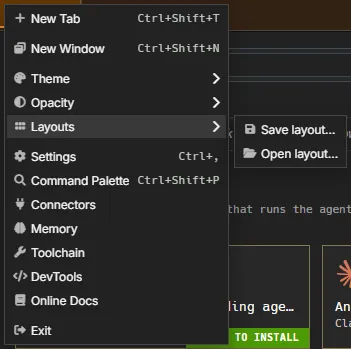
| Layouts | — | Submenu. Save layout… saves this window’s tabs and pane layout to a .agentmux-layout.json file (the Save dialog starts in ~/.agentmux/shared/layouts/); if anything in it is worth checking before you share the file, a notice lists it. Open layout… picks a layout file and shows a preview first: its tabs and panes, anything that can’t be reproduced exactly here, and any terminal commands it would run, with Run these commands (ticked only for a file this AgentMux saved in its layouts folder). Choose In a new window (the default) or Add to this window; adding never replaces what’s open. |
| Settings | Ctrl+, / ⌘, | Opens the Settings pane view — same as picking Settings from the command palette. Editing settings.json directly still works too. See Settings reference. |
| Command Palette | Ctrl+Shift+P / ⇧⌘P | Opens the command palette (see below). |
| Connectors | — | Opens the Connectors pane — Accounts, MCP servers and Remotes — or focuses the one already open in the tab. See Connectors. |
| Memory | — | Opens the Memory pane — Global, Personal, Skills and Bundles — or focuses the one already open in the tab. See Memory. |
| Toolchain | — | Opens the Toolchain Manager — effective PATH and the detected version, path, and status of every provider CLI and system dependency, with install links for anything missing. |
| DevTools | — | Toggles Chromium DevTools. |
| Online Docs | — | Opens this documentation site (docs.agentmux.ai) in your default browser. |
| Exit | — | Closes the current window (not the whole app — other windows stay open). |
The Theme and Opacity submenus check-mark this window’s current value, so you can see at a glance what you’re on. A submenu opens when you hover its row.
Restoring your workspace on relaunch
Section titled “Restoring your workspace on relaunch”Quitting AgentMux and reopening it reopens the same windows, tabs, and split-pane layout you had open when you quit, instead of reseeding the default 3-pane workspace. AgentMux snapshots the tab/layout tree just before a graceful close and replays it on the next cold start; agent panes relaunch the same agent/harness/working directory, but in-flight conversation state and terminal scrollback aren’t restored — only the pane’s own history is (the same as reattaching from a Recent sessions tab).
This is on by default, and as of this writing there’s no in-app toggle to turn it off — a Settings option is planned as a follow-up but hasn’t shipped yet. It only applies to a genuine cold start (the first window of a fresh launch); opening an additional window from the hamburger menu or tearing off a tab is unaffected.
Command palette (Ctrl+Shift+P / ⇧⌘P)
Section titled “Command palette (Ctrl+Shift+P / ⇧⌘P)”Press Ctrl+Shift+P (Windows/Linux) or ⇧⌘P (macOS) from anywhere to open the palette; Ctrl+P / ⌘P also work outside a terminal, where Ctrl+P is the shell’s history key. Each command shows its category and shortcut. Type to filter, arrow keys to navigate, Enter to run.
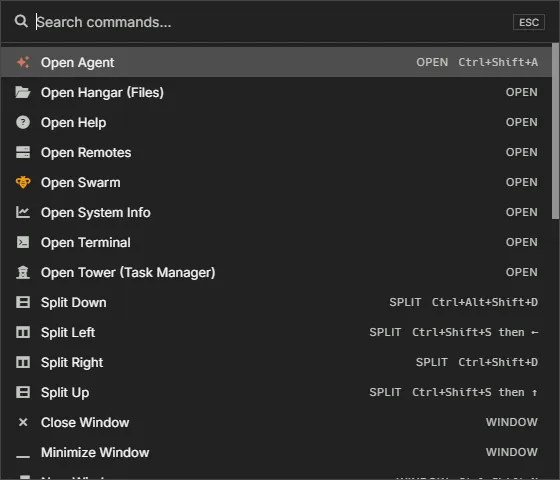
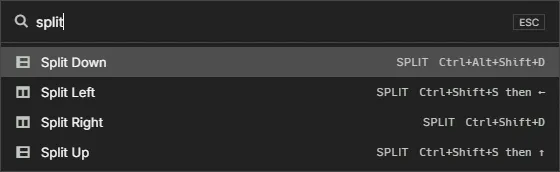
Registered commands are grouped by category:
| Category | Commands |
|---|---|
| Open | Open Terminal, Open Agent, Open System Info, Open Tower (Task Manager), Open Help, Open Swarm, Open Hangar (Files), Open Remotes |
| Split | Split Right, Split Left, Split Down, Split Up |
| Window | New Window, Close Window, Minimize Window, Toggle Maximize |
| Tab | New Tab, Close Tab, Next Tab, Previous Tab |
| Pane | Close Pane, Toggle Magnify, Focus Pane Right / Left / Up / Down |
| Dev | Toggle DevTools, Restart Backend, Open Settings File |
| View | Command Palette, Zoom In, Zoom Out, Actual Size |
| App | Connectors, Memory |
| Help | Online Docs |
Searching for “accounts”, “mcp” or “remotes” also finds Connectors, and “skills” or “bundles” finds Memory. The older Identity & Memory command is gone; Connectors replaces it.
The palette is not exhaustive — most navigation shortcuts (Connect Remote, Settings UI, Focus Block N, raw tab-switching, etc.) are reachable only via keybindings, not from the palette.
Why two surfaces?
Section titled “Why two surfaces?”The hamburger menu is the discoverable surface — open it once and you know what’s in there. The command palette is the speed surface — once you know the command name, typing two or three letters and hitting Enter is faster than menu-and-mouse.
If you find yourself wanting an action from the palette that isn’t there, file an issue — the registry is small enough that adding new commands is straightforward.