
Pane Types
AgentMux organizes your workspace into panes — individual views that can be split, rearranged, and magnified. A pane isn’t locked to one type, though: it holds an ordered list of tabs, and any tab can be any widget type — see Pane tabs below for how that works and how it differs from a pane split.
Available Pane Types
Section titled “Available Pane Types”By default the widget bar pins Agent, Swarm, Memory, Hangar, Connectors, Terminal, Editor, Browser, Messengers, Sysinfo and Help, in that order; Drone, Warden, Media, Toolchain, Tower and Settings are under more (Remotes, once a widget of its own, is now a section of Connectors). If you had customised the bar and pinned the Armory (the pane Connectors and Memory replaced), Knowledge (Memory’s earlier name) or Remotes, AgentMux replaces those pins with the new panes the first time it starts after updating. Right-click a widget to pin or unpin it. As the title bar gets narrower, the bar first drops its labels and then moves widgets that no longer fit under more (crates/srv/src/config/widgets.json, frontend/app/window/action-widgets.tsx). The widget:icononly setting drops the labels at any width.
Pin, keep in More, or hide
Section titled “Pin, keep in More, or hide”Every entry the widget bar knows about is in one of three states:
- Pinned: an icon on the bar.
- More: only in the more menu.
- Hidden: on neither, and not in a pane’s + menu either.
Set them in Settings ▸ Widgets ▸ Widget bar, which lists every entry with a Pinned / More / Hidden switch and arrows to move a pinned one left or right on the bar. A widget inside a group, such as one messenger under Messengers, has In group / Pinned / Hidden instead. Show icons only and Reset widget bar (back to the default pins, with nothing hidden) are there too. The bar, Settings and an open + menu all update together.
On the bar itself, right-click a widget for Pin to bar or Unpin from bar, and for Hide from widget bar. Hiding shows a notice for a few seconds with Undo; after that, bring the widget back from Settings ▸ Widgets. Settings can’t be hidden, so you can always get back to it. Right-clicking an empty part of the title bar shows Pin Widgets, a checklist of everything that can be pinned.
Widgets from installed widget packages can be pinned too, from the bar’s right-click menu or from Settings ▸ Widgets, and keep their place when you reorder the bar. The pins are saved as widget:pinned and the hidden entries as widget:hidden in settings.json; see the settings reference.
To see what each one looks like, see the widget gallery.
| Pane | Icon | View ID | Description |
|---|---|---|---|
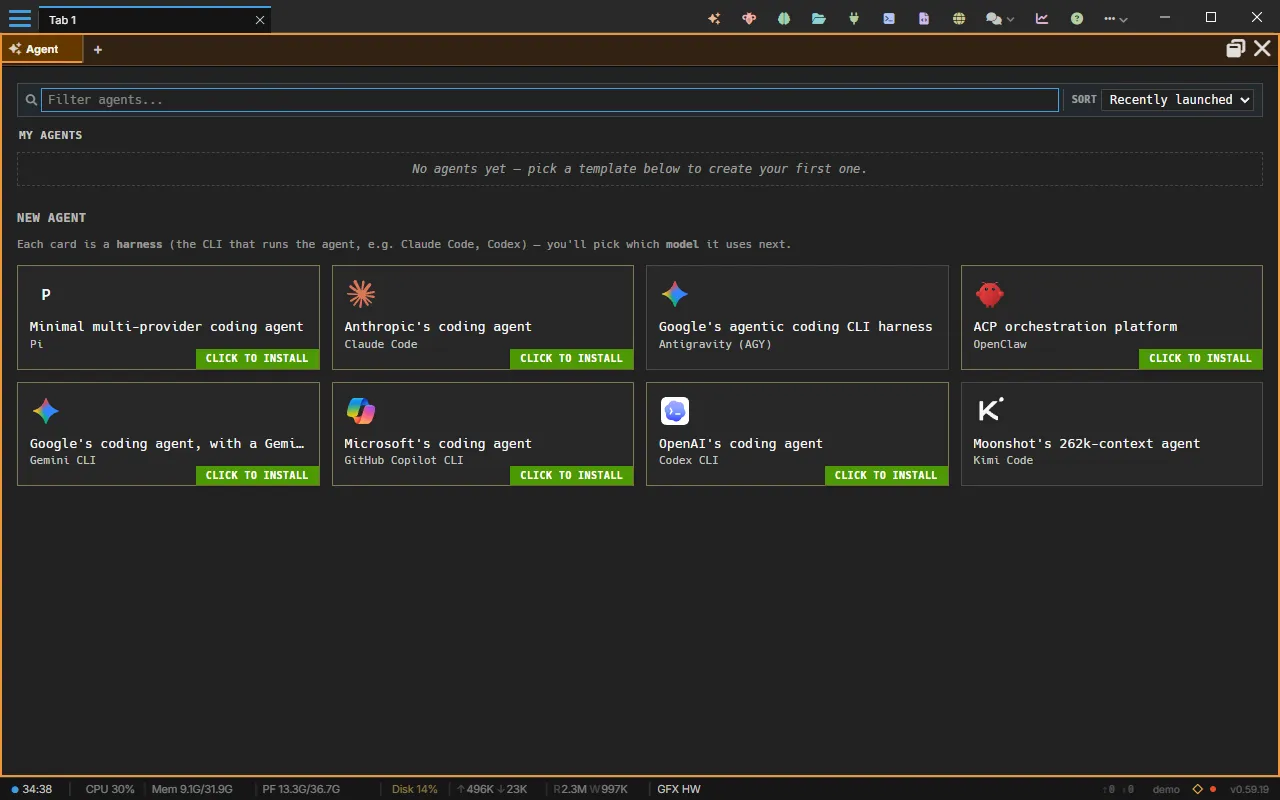
| Agent | sparkles | agent | AI agent session with streaming output. Hosts Identity and Memory subsections via the cog → settings panel. |
| Browser | globe | browser | Embedded native CefBrowserView |
| Terminal | square-terminal | term | Full terminal with real PTY via xterm.js |
| Sysinfo | chart-line | sysinfo | Live system metrics graphs |
| Connectors | plug | connectors | Accounts (sign-ins to providers and services), MCP servers and Remotes — see Connectors |
| Hangar | folder-open | files | File browser with places, drives, remote hosts, previews and drag and drop — see Hangar |
| Memory | brain | memory | Global and Personal Memory, Skills and Bundles — see Memory. Formerly Knowledge |
| Editor | file-code | editor | CodeMirror 6 editor with syntax highlighting + LSP diagnostics (TypeScript / JavaScript) + a file-tree explorer rooted at $HOME (with drives and mounts) — see Editor |
| Media | image (varies) | media | Image/video viewer pointed at a file or a watched directory, updating live as new files land — see Media |
| Swarm | bee | swarm | Live tree of your agent panes with their subagents, todos and background commands, plus a fleet toolbar — see Swarm |
| Drone | diagram-project | drone | Visual DAG-of-blocks automation engine (Agent / API / Condition / Variables / Response blocks) |
| Help | circle-question | help | Built-in documentation |
| Warden | shield-halved | warden | Monitor and control agents across Host / LAN / Internet layers — see Warden widget |
| Tower | tower-observation | tower | Read-only task manager: the CPU and memory each agent and everything it started uses, and every process on the machine — see Tower |
| Toolchain | wrench | toolchain | The CLIs and system tools AgentMux uses, with their versions, where they’re installed and how to install what’s missing — see First Agent Setup |
| Settings | cog | settings | The settings UI — see Settings reference |
Not pane types
Section titled “Not pane types”These views exist in the codebase but are not opened directly from the widget bar:
| Surface | How it’s reached |
|---|---|
| Identity | Per-agent: Stash icon (toolbox) → Accounts tab (read-only). App-wide: Connectors → Accounts. View registration (view: "identity") and IdentityPaneViewModel exist for pane.open RPC and right-click menu paths. |
| Global and Personal Memory | Per-agent: Stash icon → Personal Memory tab (the agent’s own notes, not the Bundle editor — see below). App-wide: Memory → Global and Personal. |
| Bundles | App-wide: Memory → Bundles. Per-agent, the Stash icon → Bundles tab picks which bundles the agent starts with, in order; no per-agent tab edits bundles. |
| MCP Servers | Per-agent: Stash icon → MCP Servers tab. App-wide: Connectors → MCP servers. |
| Skills | Per-agent: Stash icon → Skills tab. App-wide: Memory → Skills. |
| Settings | Hamburger menu (≡) in the top tab bar → Settings. Opens as a widget-bar pane view with ten tabs (Appearance, Window & Panes, Browser, Terminal, Sounds, Notifications & Tray, Recording, Paired devices, Widgets, Advanced); see Settings reference — no longer just opens settings.json in an external editor. |
| DevTools | Hamburger menu (≡) in the top tab bar → Dev Tools. Toggles Chromium DevTools — does not open a pane. Was a widget-bar entry until PR #936. |
The Stash icon (toolbox) replaced the older two-icon pane-header design (a separate Memory/Brain icon plus an Identity/id-card icon) — see Subsections below.
Terminal
Section titled “Terminal”The terminal pane provides authentic terminal emulation powered by xterm.js and portable-pty on the backend.
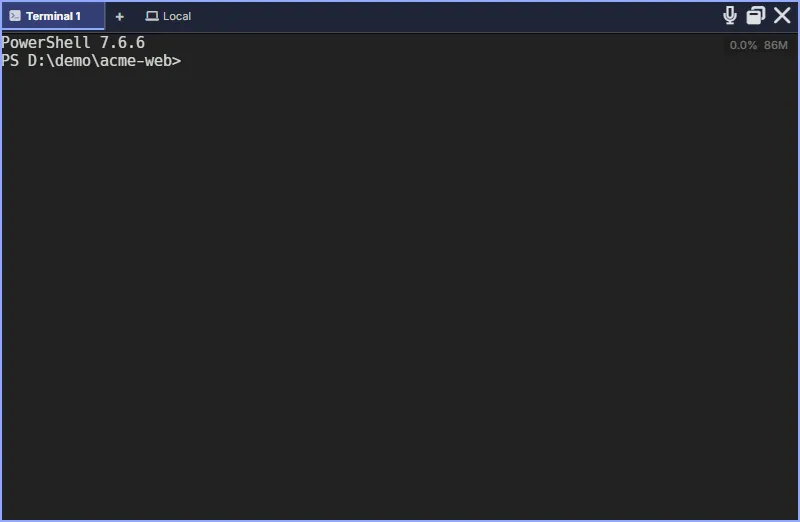
Features:
- Real PTY with full ANSI support
- Configurable font family and size
- Per-pane zoom level (
Ctrl+/-andCtrl+Scroll) - Shell-integration env block (
AGENTMUX_BLOCKID,AGENTMUX_LOG_DIR,AGENTMUX_AGENT_ID, …) with helper functions likemuxlog - Remote connections (SSH)
- Voice input — dictate commands into the PTY via the mic button in the pane header
Open a terminal: ⌘N / Ctrl+Shift+` or click the Terminal icon in the top bar.
The shell-integration scripts deployed to ~/.agentmux/shell/ set the env vars and define helpers; see Multi-instance & dev mode for the muxlog helper.
Default shell
Section titled “Default shell”A new local terminal opens with the shell chosen in Settings ▸ Terminal ▸ Default shell. See Default shell. Terminals on an SSH host or a WSL distribution open that machine’s own login shell.
CPU and memory badge
Section titled “CPU and memory badge”The badge in the top-right corner of a terminal shows the CPU and memory used by the pane’s shell and everything started in it. Hover it for a panel that explains each figure:
- CPU, as a share of one core (above 100% is more than one core);
- Memory, in RAM now; Private and Committed, where the system reports them; and Peak, the highest Memory has been;
- Renderer: whether the terminal draws with WebGL (GPU) or DOM (software), and why, for example when the graphics context was lost and it switched to DOM.
The title of the panel says which processes it counts and when the shell started. Local figures update every second.
For an SSH or WSL terminal, the figures are measured on that machine, every 2 seconds while the pane is visible, with figures for the whole host where it reports them. If the remote machine can’t tell the pane’s processes from the rest, the panel says so and shows the machine’s totals.
Turn the badge off with Settings ▸ Terminal ▸ Show CPU/mem badge (term:showstatsbadge). While no badge is showing, AgentMux scans the panes’ processes only every 30 seconds instead of every second.
Predictive echo
Section titled “Predictive echo”Characters appear locally the moment you type — before the PTY round-trip completes. The server echo is still authoritative; if it disagrees the local glyph is corrected instantly, so the visible buffer always matches what the shell actually received.
Password prompts and TUI apps (vim, less, htop) are safe: the predictor observes echo state and disarms automatically when it detects echo is off or a full-screen app takes over.
To disable: set term:predictiveecho = false in your settings. See Settings Reference.
Dropping files
Section titled “Dropping files”Dropping files from your file manager onto a terminal pane copies them into the terminal’s working directory; it doesn’t type their paths. See Dropping files onto panes.
Browser
Section titled “Browser”The browser pane embeds a native CefBrowserView at the OS-window level. It is not an iframe — the pane HWND sits as a child window of the AgentMux frame, which is why links, popups, and DRM content all work like a regular Chromium tab.
| Control | Action |
|---|---|
| ← / → / ⟳ | Back / Forward / Reload |
| Address bar | Enter URL or search query — defaults to a search if it doesn’t parse as a URL |
| Go | Navigate to the address-bar value |
Header state syncs from the backend’s browser-pane-nav-state event:
- Title — updates as the page loads
- Favicon — fetched from the page; falls back to the
globeicon - History — back/forward enabled state, per-pane
When you click inside the pane, the host fires browser-pane-clicked over the JS bridge, which the reducer stack routes through refocusNode(blockId) so keyboard shortcuts and split commands target the clicked pane. (DOM clicks don’t bubble out of the embedded HWND, so the explicit IPC is necessary — this is the same pattern the debugging page describes.)
IPC commands
Section titled “IPC commands”The host exposes the browser pane’s lifecycle via these CEF commands (invoked through invokeCommand from the renderer):
browser_pane_create— instantiate the CefBrowserView; called on first mountbrowser_pane_navigate— load a URLbrowser_pane_resize— propagate Solid layout changes to the HWNDbrowser_pane_reload— reload the current pagebrowser_pane_focus— explicit focus handoff after a clickbrowser_pane_close— tear down on pane close
If you need to drive the browser pane from an agent or saga, those are the commands. The frontend BrowserViewModel shows the canonical sequencing.
Default URL
Section titled “Default URL”Blank-spawned browser panes default to https://agentmux.ai. To get a literally blank pane, pass meta.url = "about:blank" explicitly. (Spec: SPEC_BROWSER_PANE_DEFAULT_URL_AND_POPUP_2026_04_21.md.)
Address-bar focus + click handoff
Section titled “Address-bar focus + click handoff”The address bar and the embedded CEF pane each compete for keyboard focus across two independent axes:
- DOM focus —
document.activeElementin the main React webview. Owned by Chromium, updated on every focus/blur. The “DOM is the source of truth for where typing goes” rule from the browser-pane state catalog applies to this axis only. - Win32 OS focus — which HWND receives keystrokes. Owned by the OS, set by
SetFocus/SetForegroundWindow. The pane HWND is a child of the main window; clicking the pane intercepts the click at WndProc level before the renderer’s React DOM ever sees it.
When these two axes disagree, you get the classic “click X, type, characters land in Y” bug. Two specific paths matter:
Click into the page (e.g. google search): The pane HWND captures the click via WndProc, SetFocuss itself, and emits browser-pane-clicked over IPC. The renderer’s BrowserViewModel handler explicitly blurs whatever main-window input held DOM focus before calling refocusNode(blockId) — otherwise the subsequent giveFocus() flow sees the address bar’s stale activeElement and tells the host to bounce OS focus back to the main window. (Diag log: [browser-pane:diag] pane-click blur active=input.browser-address-bar.)
Click into the address bar: The <input> onMouseDown handler fires main_window_focus IPC before the focus event, so OS keyboard focus moves to the main webview HWND at click-start. Without this, the address bar’s onFocus fires too late — DOM focus moves but OS focus stays on the pane HWND, and keystrokes still route to Chromium. Buttons in the same nav bar happen to work without an explicit IPC because CEF/Chromium internally calls SetFocus(parent) for native <button> controls; <input> doesn’t get the same treatment when the parent webview lacks focus.
onMouseDown (not onMouseEnter) is the click-to-focus trigger on both sides — hover-focus loops were the original failure mode the design corrects.
Editor
Section titled “Editor”The editor pane is a CodeMirror 6 workspace with a file-tree explorer down the left side. It covers quick edits, file viewing, and diffing inside a pane — it is not a standalone IDE; deep editing happens in your agent’s terminal or via agent tool calls.
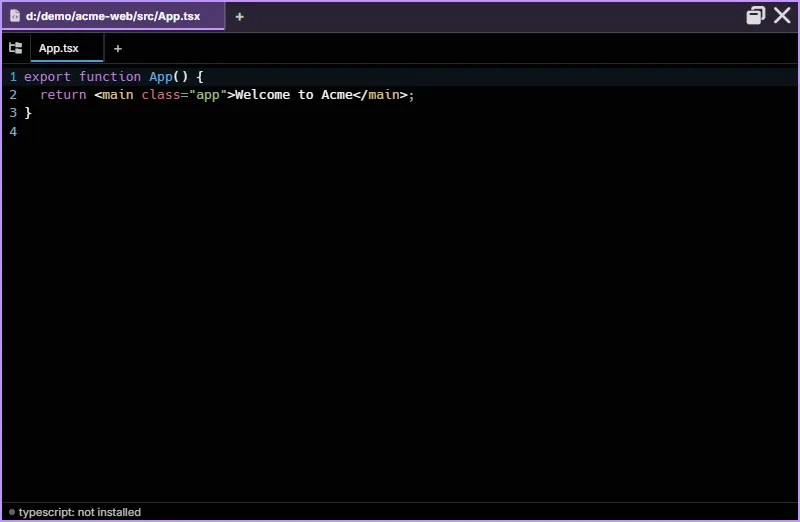
Languages currently get syntax highlighting via lazy-loaded extensions: TypeScript / JavaScript, Python, Rust, HTML, CSS, JSON, Markdown. Other extensions fall back to plain text.
Ctrl+S / Cmd+S saves the current file. When no file is open (scratch buffer mode), Ctrl+S opens an inline Save As path entry at the bottom of the editor — type an absolute path and press Enter to write the buffer to disk. Unsaved changes mark the pane title with *.
File tree
Section titled “File tree”The tree column appears on the left, expanded by default, with three “roots” — your $HOME (auto-expanded so you don’t have to drill in) plus every other drive (Windows) or mount (macOS /Volumes, Linux /mnt and /media, plus / itself). The drive that hosts $HOME is de-duplicated so it doesn’t appear twice — UNIX / is the exception, always shown so you can reach /etc, /opt, etc.
| Interaction | Behavior |
|---|---|
| Click a folder row | Expand if collapsed, collapse if expanded (lazy-loaded on first expand; cached after) |
| Click a file row | Loads it into the editor. The active file’s row carries a circle-dot icon and a highlight |
| F2 on a file or folder row | Inline rename — edit the name in place and press Enter to confirm, Escape to cancel. A confirmation dialog appears for non-empty directory renames. |
| Right-click a folder row | Context menu: Rename (same as F2), Collapse Folder (collapses that subtree only) |
| Hover the divider between tree and editor | Cursor flips to col-resize; drag to resize the tree column |
| Symlinked rows | Followed automatically (matches VS Code), marked with a ↗ overlay |
The tree column width is persisted per pane in pane metadata (editor:tree_width, default 240 px, range 150–600). The full tree’s expand state is in-memory (collapsing a folder keeps its children cached so re-expand is instant).
Pane icon doubles as the tree toggle
Section titled “Pane icon doubles as the tree toggle”The editor pane’s header icon is the file-tree expand/collapse button. Click it to hide the entire tree column and give CodeMirror the full pane width; click again to bring it back. The glyph flips with state — folder-tree when the tree is open, folder when collapsed — and the tooltip mirrors that (“Hide file tree” / “Show file tree”). The preference is per pane — editor:tree_expanded in block meta — so two editor panes in the same window can keep independent layouts (one tree-open for browsing, one full-width for diffs).
The pane title shows the complete file path, not just the basename, with a trailing * for unsaved changes. When several editor panes are open on similarly-named files (e.g. two index.ts in different directories), the title makes it unambiguous which one you’re actually editing.
Toolbar
Section titled “Toolbar”Three small square buttons at the top of the tree, each with an instant tooltip on hover (zero delay — pure CSS reveal):
| Button | Type | Behavior |
|---|---|---|
| 👁 / 👁🗨 | toggle | Show / hide hidden files. Off by default — dotfiles, node_modules, .DS_Store, Thumbs.db, $RECYCLE.BIN are filtered out. Persisted per pane as editor:show_hidden |
| ⊟ | action | Collapse all folders to the top-level roots |
| 🔄 | action | Re-fetch every currently expanded folder. Preserves expansion state. There’s no background watcher; this is the explicit refresh path |
Open by path
Section titled “Open by path”A path-input affordance lives at the bottom of the tree column when no file is open — handy when an LLM hands you an absolute path and you don’t want to navigate the tree to find it. Once a file is open, the input is hidden to give the tree more vertical space.
You can also drop text files from your file manager onto the editor pane: each opens in its own tab (frontend/app/view/editor/editor-drop.ts). See Dropping files onto panes.
Encoding detection
Section titled “Encoding detection”The editor detects and handles non-UTF-8 files automatically — Windows-1252 .ini files, UTF-16 BOM, Shift_JIS, and similar encodings all load correctly. The detected encoding is shown in the status bar. Saves always write back in the file’s original encoding unless you choose otherwise.
Markdown preview
Section titled “Markdown preview”With a .md file open, press Ctrl+Shift+V (Cmd+Shift+V) to toggle a rendered preview pane alongside the editor. The preview re-renders on each save. Press the shortcut again to collapse it.
Find / Replace
Section titled “Find / Replace”Press Ctrl+F (⌘F) to open the find bar, which also does find-and-replace. It supports:
- Regex — toggle the
.*button to switch between literal and regex search - Case-sensitive — toggle
Aa - Whole word — toggle
\b
Results highlight in the editor and the gutter shows match density. Press Enter / Shift+Enter to step through matches; press Escape to close.
Language-server diagnostics (Phase 1)
Section titled “Language-server diagnostics (Phase 1)”The editor speaks the Language Server Protocol for real, type-aware diagnostics. Phase 1 (shipped) covers TypeScript and JavaScript via typescript-language-server; completion, hover, go-to-definition, and additional languages land in follow-up phases — see SPEC_EDITOR_LSP_AND_THEMES_2026-05-26.md.
Language servers are not bundled. AgentMux follows the VS Code model: open a supported file, the editor looks for the server on your PATH, and either uses it or prompts you to install it.
Install banner
Section titled “Install banner”If the server binary isn’t on PATH when you open a supported file, a yellow banner appears at the top of the editor pane with:
- the server’s name (e.g. “TypeScript language server isn’t installed”),
- the copy-paste install command (
npm install -g typescript-language-server typescript), - a Copy button for the command,
- a Docs ↗ link to the upstream installation guide,
- a × dismiss button (per-session — the banner reappears next time you open a server-supported file).
Once you install the server and switch panes (or reopen the file), the banner is replaced by the running indicator.
Status chip
Section titled “Status chip”A small chip at the bottom of the editor shows the current server state — the chip colors track lifecycle:
| Color | State |
|---|---|
| 🟡 yellow | Starting / initializing — child process spawned, awaiting initialize response |
| 🟢 green | Ready — diagnostics streaming, didChange notifications going through |
| 🔴 red | Crashed — server exited unexpectedly or the transport broke. The chip flips to error; the full reason is in the host log (muxlog host LSP) |
| ⚪ dimmed | Missing — server binary not on PATH (the install banner is also visible) |
How it works
Section titled “How it works”- One supervisor process per (workspace root, language) lives on the backend. Two panes open on the same project share the same server (refcounted) — opening a second
.tsfile from the same repo costs zero new server processes. - The workspace root is detected by walking up the file’s directory for
.git,Cargo.toml,package.json,go.mod,pyproject.toml,deno.json, ortsconfig.json— whichever is closest wins. Files outside a project fall back to the parent directory. - Diagnostics arrive as gutter markers and underline squiggles, identical to CodeMirror’s built-in lint surface. Severity follows the LSP spec: error → red, warning → yellow, info / hint → blue.
- Edits debounce at 250 ms before flowing to the server via
didChange; that’s deliberately conservative — most servers re-typecheck synchronously and a tighter window leaves the UI feeling laggy on big files.
Kill switch
Section titled “Kill switch”Set editor:lsp.enabled = false in your settings to disable LSP across all editor panes. Useful if a misbehaving server is eating CPU and you want to roll back to syntax-only highlighting.
What’s not in the editor (yet)
Section titled “What’s not in the editor (yet)”The editor is intentionally scoped — see SPEC_EDITOR_FILE_TREE_2026-05-26.md for the file-tree design and SPEC_EDITOR_LSP_AND_THEMES_2026-05-26.md for the language-server roadmap. Not currently supported (each item listed there as future phases):
- File watching for live tree updates — use the 🔄 button when something changes outside the app
- Delete / new-file from the tree — happens in your agent or terminal (rename ships via F2 and the right-click context menu)
- Multi-root workspaces — single set of system roots is the only configuration
- LSP completion / hover / go-to-definition — Phase 2; only diagnostics ship today
- LSP for languages other than TypeScript and JavaScript — Phase 3 (rust-analyzer, pyright, gopls, clangd are pre-wired in the install-hint table, just not surfaced yet)
- Tree-wide search / filter (the tree is read-only browse for now)
10 MB file-size cap on read and write — over that, the editor refuses to load.
Document tabs
Section titled “Document tabs”The Editor and Media panes each keep their open files as document tabs in the pane header, with the same tab bar, keys and saving in both. The + at the end opens a new, empty tab.
- Drag a tab along the bar to reorder it.
- Drop it on another pane of the same kind to move it there. An Editor tab keeps its unsaved changes and undo history.
- Drop it near the edge of any pane to open it in a new pane on that side.
- Right-click a tab and choose Move to New Pane to open it in a new pane to the right of its own.
A new pane made this way is an empty Editor (on the same connection) or Media pane, holding just that tab. A tab that is being saved stays where it is.
Hangar
Section titled “Hangar”Hangar is a file browser (frontend/app/view/files/files-view.tsx). It opens on your home folder, or on the folder in its files:path setting, and on a remote host’s files when you choose Browse files in Connectors → Remotes. The pane title is the folder’s name.
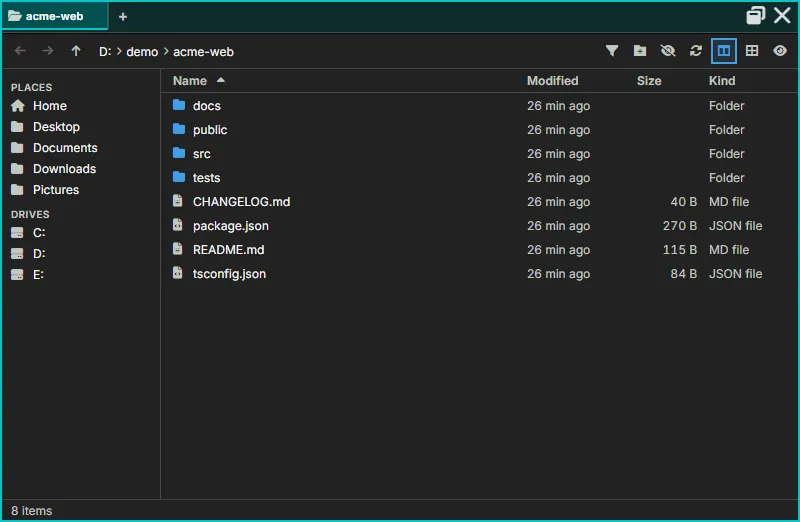
- Toolbar: Back, Forward and Up; a breadcrumb you can click, or double-click (or press
Ctrl+L) to type a path; Filter (Ctrl+For/); new folder; show or hide hidden files; refresh; and toggles for the Places sidebar, a list or thumbnail view, and the preview panel. - Places (left): your home and common folders, drives, WSL distributions, remote hosts (with Manage remotes…), and your agents’ folders, each in the agent’s colour.
- The list: sortable Name, Modified, Size and Kind columns, or a thumbnail grid. In a git repository each row shows its status letter, and a dot marks a file an agent changed (its tooltip names the agent).
- Preview (
Space, or the eye button): images, highlighted code, rendered Markdown, and cards for folders, audio, video and other files. - Right-click a row to open it (here, in a new tab, in the Editor, or with the default app), open a terminal there, reveal it in your file manager, Mention in agent or Attach to an agent, cut, copy or copy its path, rename (
F2), move it to the Trash or delete it permanently. Right-click empty space for a new folder or file, paste, and the folder’s own actions. - Copying and moving: cut, copy and paste, or drag files. When a name already exists, Hangar asks: Keep both, Skip, Replace or stop, with Do this for every conflict.
- Status line: the item count and selection size, the repository’s branch and changes, and messages such as an undo for the last change.
Keyboard shortcuts are listed in Keybindings → Files.
The Media pane is a live-updating image/video viewer for files an agent (or you) produce on disk — the typical case is watching the output of a local generation pipeline (e.g. a ComfyUI-style image/video workflow) land without leaving AgentMux to open a file explorer.
Point it at either:
- A single file — renders that image or video and stays on it.
- A directory — watches it and shows the most recently modified matching file, updating automatically (no manual reload) whenever a new or changed file appears. There’s no gallery/grid of every file in the directory yet — it always shows one file at a time.
To point it at a file yourself, drop one image, video or audio file onto the pane from your file manager (frontend/app/view/media/media.tsx). See Dropping files onto panes.
The pane watches the filesystem via the same notify-crate mechanism the Editor pane’s live-reload uses, generalized from “one open file” to “a whole directory.” Supported extensions include common image formats (png, jpg, webp, gif) and video (webm, mp4 — though H.264/AAC .mp4 playback depends on your build’s Chromium codec support; webm typically plays more reliably).
Opening it programmatically
Section titled “Opening it programmatically”Agents have a dedicated OpenMedia MCP tool — the Media-pane equivalent of OpenEditor — to open a specific file in a Media pane next to the conversation (optionally as a split or a floating pane) without the human having to browse for it manually. Useful for “here’s the image/video I just generated” moments mid-turn.
The agent pane is the first-class resident unit of AgentMux. Each agent gets a structured pane — not a terminal wrapper — with its own accounts and bundles, streaming parser, lifecycle management, and direct access to MuxAPI. It displays:
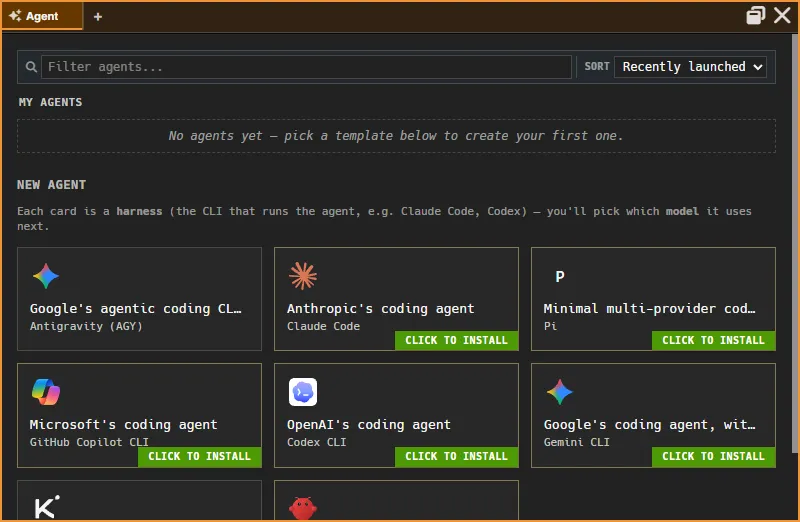
- Streaming text — Agent output in real time
- Tool calls — Name, arguments, and result of each tool invocation
- File diffs — Visual diff overlay when the agent writes files
- Auto-scroll — Follows output, with manual scroll override
- Voice input — dictate prompts into the composer via the mic button in the pane header
- Enter animation — New messages animate into view as they stream in; set
window:reducedmotion = trueto disable. - Disconnected banner — if the WebSocket tore down mid-turn, a banner appears at the top of the pane with a single action to reconnect. Dismissing it lands you in an idle state with the partial turn preserved.
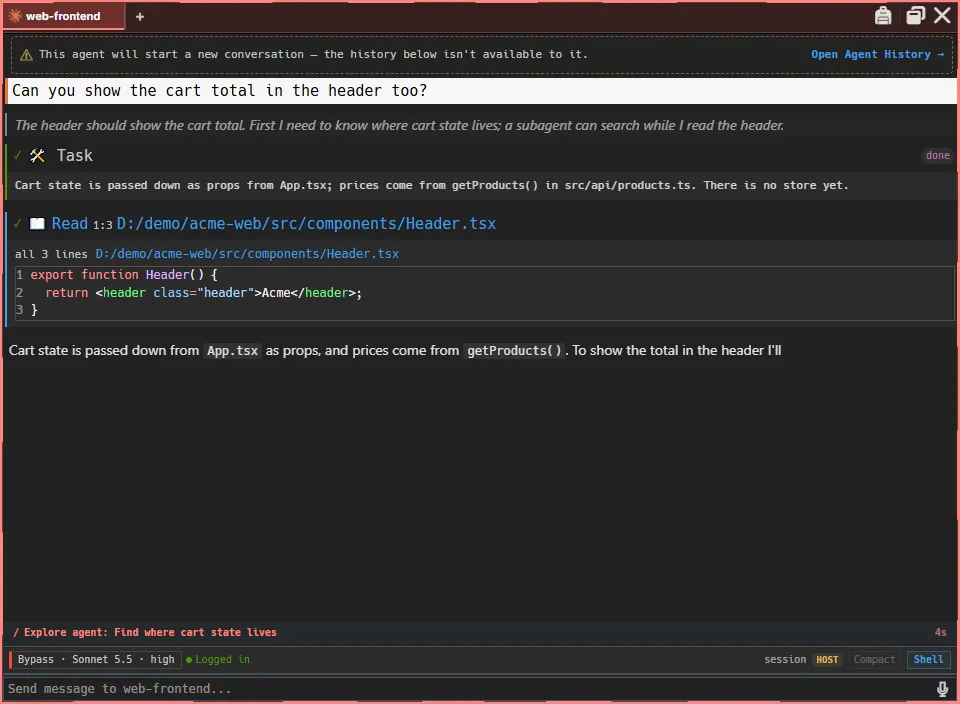
Agent panes are configured through Bundles, picked when the agent is created; the Stash’s Bundles tab changes them for an existing agent (see Subsections below).
Activity indicator
Section titled “Activity indicator”While an agent is actively streaming or tool-calling, the host signals the OS that the app is busy — Windows lights up the taskbar entry, macOS bounces the dock icon, Linux raises an urgency hint. The indicator clears as soon as the agent goes idle. Useful when you’ve shifted focus to another app and want to know when the agent has finished without polling the window.
Activity is tracked per-pane and aggregated across panes, so the indicator reflects “at least one agent is busy” not “this specific agent”. Implementation detail in frontend/app/store/agentActivity.ts.
Rendering performance
Section titled “Rendering performance”The agent message list is virtualized: only ~50 visible rows + 5-row overscan are mounted in the DOM at any moment, regardless of session length. A 2000-message session no longer means a 2000-element layout tree.
The virtualization is hybrid — the trailing 50 rows (the streaming buffer) are always mounted in normal flex flow, never recycled. Older rows are virtualized via @tanstack/solid-virtual with absolute positioning and per-row ResizeObserver measurement. This split eliminates measurement lag during token streams, which would otherwise cause visible jitter as text grew.
See internals/agent-pane-virtualization for the architecture and the spec at docs/specs/SPEC_AGENT_PANE_VIRTUALIZATION_REDESIGN.md in the main repo.
Runtime limits for agent panes are controlled by the term:agentmaxruntimehours and term:agentidletimeoutmins settings — see the Settings Reference.
Scrolling past a preview
Section titled “Scrolling past a preview”Some content in the agent pane sits in a capped box with its own scrollbar: a tool call’s output, an incoming message, a context delivery card. When you scroll such a box to its top or bottom edge with the mouse wheel, the next 3 wheel notches are held there, and a line shows on that edge; only after that does the wheel scroll the whole pane. A trackpad swipe (or a high-resolution wheel) is held at the edge until the gesture pauses. This stops a box that slides under the pointer from being scrolled past by notches meant for it. Tool output that fits without a scrollbar holds the wheel the same way (frontend/app/view/agent/components/scroll-handoff.ts).
Activity dock
Section titled “Activity dock”Long-running shell commands started by the agent are pinned to a dock at the top of the agent pane — visible at a glance without scrolling to find the tool call. Click any docked activity row to expand its live log output. Three rows show at once; the rest fold under ”▸ N more”.
What gets a row (frontend/app/view/agent/components/ActivityDock.tsx, frontend/app/view/agent/activity/tool-adapter.ts):
- A Bash call that has been running for 30 seconds — the auto-detected “this is taking a while” case. A bare
sleepgets a row straight away, with a “~Ns left” countdown. - A command the agent launched in the background (
run_in_background), immediately, including one a subagent started. A long-lived background process (a dev server, a watch task) is expected to keep running, so it shouldn’t look like a stuck turn. - Shells and subagents the agent started.
A row shows a glyph for its kind while it runs ($ for a command), then ✓ (done), ✗ (failed) or ■ (stopped). A finished row leaves the dock after a few seconds: 8 s when done, 3 s when stopped, 15 s when failed. A failed row can be dismissed sooner with ×. A background command’s row ends when the agent is told it finished, or when Claude Code reports that it ended, which is what clears rows for commands a subagent started. The same background commands also appear in the Swarm pane.
Agent History
Section titled “Agent History”Each agent pane keeps its working scrollback scoped to the agent’s current session — after a fresh session starts, older conversation isn’t shown inline (it’s still fully retained, just out of the live view). To read the full multi-session history, open Agent History: a read-only tab on the agent pane (reachable via the Earlier conversations link row that appears at the top of the scrollback after a new session starts, or via the pane’s right-click context menu) that shows the entire retained conversation across every session, with day separators and session-boundary dividers, and its own independent scroll/pagination back to the very first message. It’s a separate tab, not a view that replaces your live conversation — switch back to the live tab at any time, and an in-progress composer draft survives the round trip.
Send-now queue
Section titled “Send-now queue”The composer has a send-now mode for messages you want delivered the moment the agent’s next tool call completes — useful for mid-turn corrections without interrupting the current operation. Type your message and use the send-now action to queue it; it holds at the tool-call boundary and fires the instant the tool returns. Press ↑ to recall the last queued message.
AskUserQuestion
Section titled “AskUserQuestion”When an agent calls AskUserQuestion (part of the Agent SDK control protocol), an interactive question panel appears inline in the pane — above the composer, below the message thread. Submit your answer directly; the agent resumes without any further action. If the agent stalls after receiving the answer, AgentMux auto-resumes it after a short delay.
Persistent shell
Section titled “Persistent shell”Agent panes can host a persistent shell session pinned alongside the conversation. Unlike tool-call shells (which run inline and close with the tool call), a persistent shell stays open between turns — the agent can issue commands to it across multiple turns, and you can interact with the same shell directly. Each persistent shell shows a stop button (⏹) in its header; the ShellStop MCP tool lets the agent stop it programmatically. Tree-kill on close ensures no orphaned child processes. The agent can also write to it (ShellInput) and poll its state (ShellStatus) — see MuxAPI.
Next-prompt suggestion (ghost text)
Section titled “Next-prompt suggestion (ghost text)”After each completed turn, if the composer is still empty, AgentMux may show a dimmed, model-predicted suggestion for your likely next message — displayed as the composer’s placeholder text. Press Tab to accept it (inserted in full); typing anything else dismisses it immediately. It’s powered by a small Haiku call and is always-on today (no settings toggle exists yet). This is AgentMux’s own reimplementation of a feature Claude Code’s own CLI can’t surface here, since AgentMux always drives it in non-interactive mode.
Composer strip
Section titled “Composer strip”Mode, Model, and Effort (Claude panes only) render as pill-shaped drop-up controls in the composer strip — click one to open a small popup above it rather than a native dropdown; changes apply on the agent’s next turn. The Shell button (formerly labeled “Log”) toggles the resizable details drawer described below.
The strip also shows the account the agent is signed in as. When you have another signed-in account for the same provider, and the agent isn’t in the middle of a turn, click it and pick Switch to <email> to move the agent to that account. Switching restarts the agent (frontend/app/view/agent/components/AgentComposerStrip.tsx).
Attaching files
Section titled “Attaching files”You can attach any kind of file to a message: images, PDFs, Word, Excel and PowerPoint files, text, code, archives and more (frontend/app/view/agent/attachments/, crates/srv/src/backend/attachments/). To attach files:
- drop them anywhere on the agent pane (see Dropping files onto panes); a dropped folder adds the files in it, skipping folders such as
node_modules,target,distand.venv; - paste them with
Ctrl+V(Cmd+V), for example a screenshot or files copied in your file manager; - or right-click the message box and choose Paste.
Attached files appear above the message box as numbered tiles: a thumbnail for images, SVG and text, or a coloured icon with the file’s extension for everything else (PDFs also show their page count). Click a tile to preview it; its × removes it, with a few seconds to undo. A header shows the count and total size, with a progress bar while files are being processed. A message can carry up to 128 files and 1 GB (attachments:maxfiles, attachments:maxtotalmb).
What the agent receives:
- Every agent gets a numbered list of the files with their paths on disk and a short note on each (type, PDF page count). Office documents and PDFs also get an extracted text version, and its path is listed too.
- Claude agents additionally see images inline, and read PDFs of up to 100 pages directly: up to 20 inline images per message (
attachments:claudeinlinemax) and 50 MB of inline images per session (attachments:claudesessioninlinemb). Beyond those limits, files are listed by path for the agent to open.
Container agents can’t take attachments yet: files dropped or pasted into their pane are copied into the agent’s working folder instead, with an @name reference in the message box. Attachment files are kept for 30 days after they were last used, and files never sent are removed after 7 days (attachments:retentiondays).
Side questions (/btw)
Section titled “Side questions (/btw)”Type /btw <question> to ask the agent something without interrupting the turn it’s running. The answer appears in a floating overlay (Esc closes it), and neither the question nor the answer is added to the conversation. It works on Claude, Codex and Gemini agents (frontend/app/view/agent/commands/providers/btw.ts).
Coloured status words
Section titled “Coloured status words”Agents can colour a few words of a reply to mark status: passed, needs attention, failed, a note, de-emphasised, before/after, or a small badge. The colours come from your theme, and AgentMux tells agents how to use them through its Operator Config. Only the classes am-ok, am-warn, am-error, am-info, am-muted, am-added, am-removed and am-badge are kept; any other class, and any style attribute, is stripped (frontend/app/element/markdown-semantic.ts).
Details drawer & embedded shell
Section titled “Details drawer & embedded shell”Click Shell in the composer strip to open a resizable details drawer beneath the message thread, holding both the activity log and a real embedded terminal (xterm.js + PTY) for the pane. Drag the drawer’s top edge to resize it (120–600 px); the height persists per-pane. The embedded terminal is a genuine, usable shell — though newer and lighter-weight than the standalone Terminal pane, so some edge cases (e.g. large pastes) aren’t as polished yet.
Pane and tab colors
Section titled “Pane and tab colors”Every agent has its own automatically assigned display color — a deterministic color derived from the agent’s id, set the moment the agent is created (and backfilled for agents that existed before this shipped) and shown as the agent pane’s border. It requires no action on your part; it’s just how you can tell agents apart at a glance across panes.
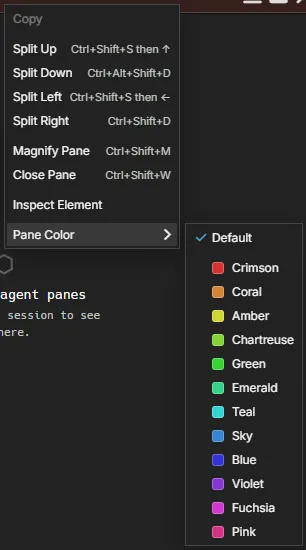
This is separate from manual pane/tab coloring: right-click a pane header and open Pane Color for Default and 12 named colors (applies a frame:hue to that pane) — this works on every pane type, not just Agent panes, and overrides an agent’s automatic color when set. Right-click a window tab for a separate 14-swatch palette (tab:color) to color the tab itself, with Clear color and Rename. These are two independent color systems (different storage, different swatch sets) by design.
Subsections
Section titled “Subsections”The agent pane has a single Stash icon (toolbox) in the pane header — it replaced the older two-icon design (a separate Memory/Brain icon and Identity/id-card icon) — opening a tabbed drawer (frontend/app/view/agent/components/AgentStashModal.tsx). “Stash” is the per-agent counterpart of the app-wide Connectors and Memory panes:
- Accounts — the accounts linked to this agent, read-only except for a Claude Connect / Re-login. Renders
AgentIdentityLinksPanel. New links come from signing in, the failure row’s Bind, the composer’s account chip, or Connectors → Accounts; see Identity. - Personal Memory — this agent’s own memory notes, not a Bundle editor. Renders
AgentNativeMemoryModal, the same browser as Memory → Personal. See Memory → Personal. - MCP Servers — this agent’s accessible MCP servers (bind/unbind globals, manage private ones). Renders
AgentMcpModal. - Skills — this agent’s accessible skills, same shape as MCP Servers. Renders
AgentSkillsModal. - Bundles — the bundles this agent starts with, in order, its own bundle first; saved on each change. Renders
AgentBundlesTab. See An agent’s bundles. - Registration — this agent’s live message-delivery status: its local registration, any other instance or channel on this host claiming the same identity, and recent deliveries rejected by the identity-mismatch guard.
- Devices — Hide from paired devices: a hidden agent is left out of what a paired device (the mobile app) lists and can’t be watched from one. Saved as soon as it changes. Renders
AgentDevicesPanel.
Bundles themselves are edited only in Memory → Bundles. The view: "identity" registration exists so pane.open RPC and right-click menus can still reach that view, but the primary path is the Stash.
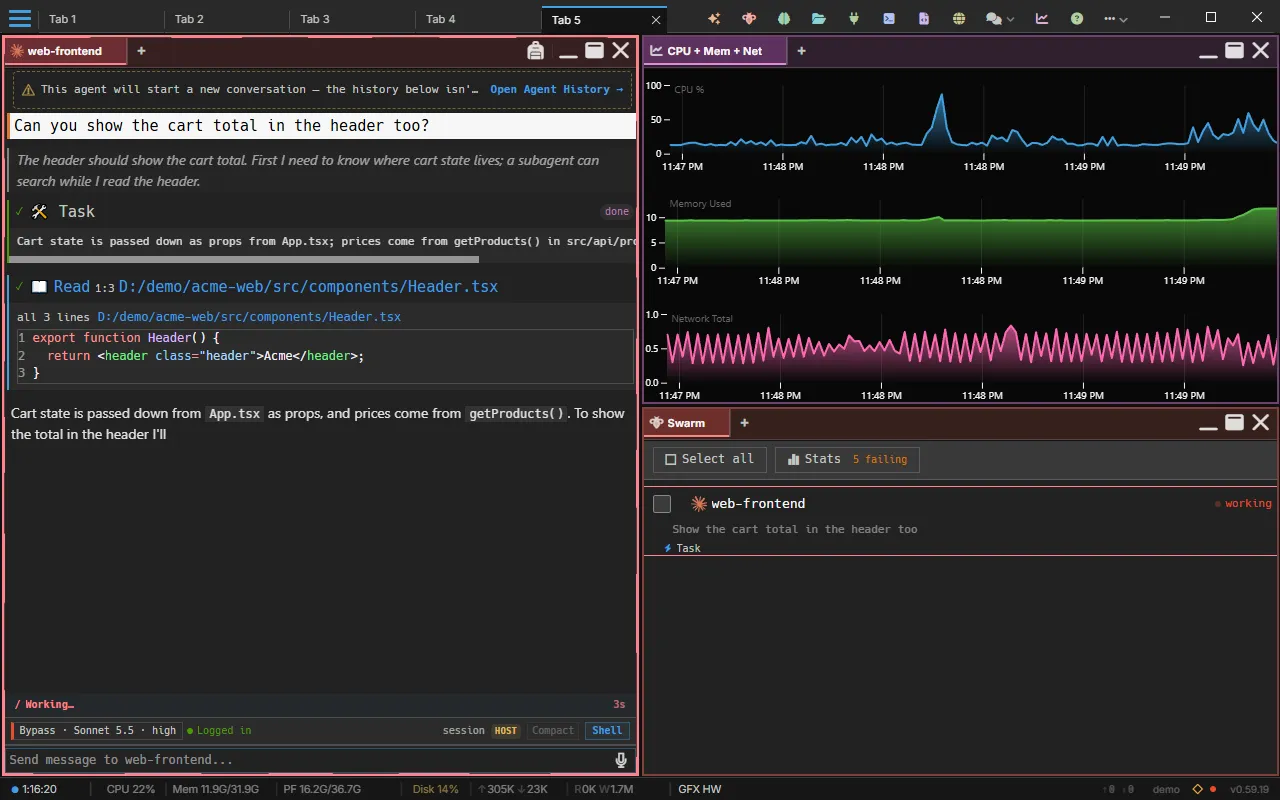
The Swarm pane lists every running agent pane on this AgentMux instance as a tree. Under each agent you see its todo list, subagents, workflow runs, shells, cron jobs, long-running commands and background commands; a subagent’s own background commands appear under that subagent. Click an agent to focus its pane. A fleet toolbar sends one message to several agents, or stops them. The pane has no tabs, and subagent activity expands inline in the tree rather than in a pane of its own. The toolbar’s Stats button opens a panel counting the model requests AgentMux has made on its own (session titles, names, prompt suggestions, narration) since its server started, and how each ended. See Swarm.
The Drone pane is a visual DAG-of-blocks automation engine — compose a directed graph where each node is a reusable block, run it, and inspect results per block. Open it from the widget bar.
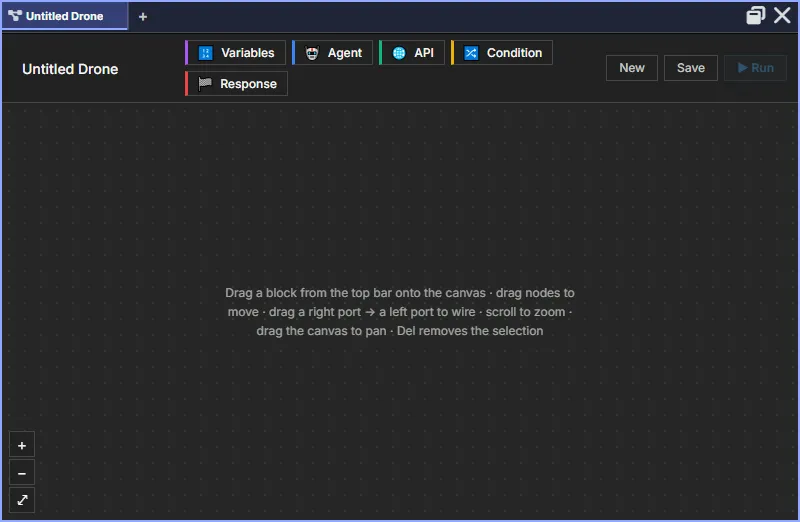
The name signals the pane’s autonomous nature: a drone runs unattended on triggers, distinct from the interactive Agent pane.
Block types
Section titled “Block types”| Block | Purpose |
|---|---|
| Variables | Declare drone-scoped variables, read elsewhere via {{var.name}}. |
| Agent | Run an agent with a task prompt. Supports identity, memory, named-agent continuation, and working directory — the same controller the interactive Agent pane uses, invoked headlessly. |
| API | Make HTTP requests (GET/POST/PUT/PATCH/DELETE). URL and body support {{...}} interpolation. |
| Condition | Evaluate a boolean expression (e.g. {{var.x}} > 10); branches into true / false outputs. |
| Response | Terminal output block. Exactly one is required per drone — execution pauses until a Response is reached or an error occurs. |
Authoring a drone
Section titled “Authoring a drone”- Click New to start a blank drone.
- Click a block in the palette to add it to the canvas.
- Shift-click a source node, then a target node, to connect them.
- Click a node to open the inspector and configure its parameters.
- Save to persist the drone to the backend.
Running a drone
Section titled “Running a drone”Click Run. The engine performs a topological sort over the DAG and executes blocks in dependency order, publishing block_started / block_done / block_error events on the dronerun:<id> SSE topic. The bottom Runs panel shows recent executions; the right-hand inspector shows the last result for whichever block is selected (for Agent blocks, the final response text and cost in USD if available).
Known limitations
Section titled “Known limitations”The Drone pane is on a Phase 2 roadmap that adds the following — they are not available yet:
- Drag-and-drop canvas (current canvas is click-to-add + Shift-click to connect)
- Triggers (cron / webhook / dependency / schedule)
- Subdrone invocation (one drone calling another)
- Function blocks (sandboxed JS via
quickjs-rs) - Streaming agent output live into the inspector (Phase 1.5 shows aggregated result only)
- Run cancellation / abort
Sysinfo
Section titled “Sysinfo”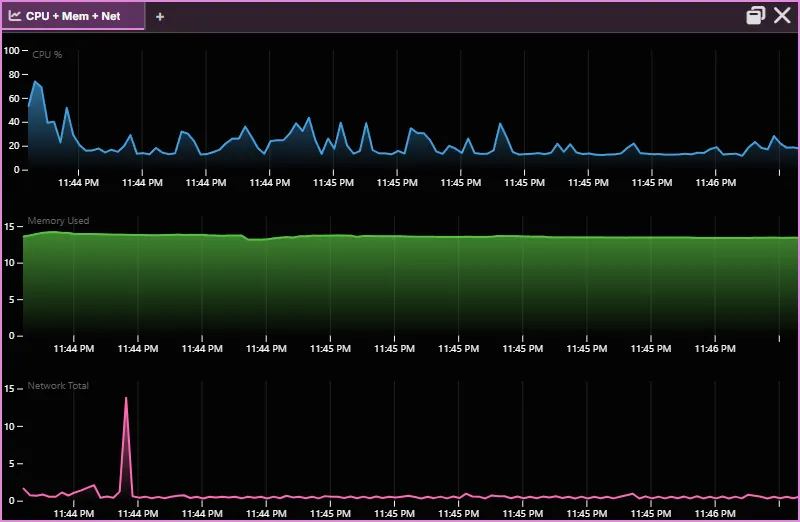
Live system metrics displayed as time-series line plots. Supports multiple plot types:
| Plot Type | Metrics |
|---|---|
| CPU | Overall CPU usage % |
| Mem | Memory used (GB) |
| CPU + Mem | Both on one view |
| Net | Total network throughput (MB/s) |
| Net (Sent/Recv) | Sent and received separately |
| Disk I/O | Total disk throughput |
| Disk I/O (R/W) | Read and write separately |
| All CPU | Per-core CPU usage (up to 32 cores) |
| CPU + Mem + Net | All three combined |
Data streams via WebSocket events from the backend. Supports remote connections — view system metrics from SSH-connected hosts.
Voice input
Section titled “Voice input”Speak into a pane instead of typing. Voice input is supported on Terminal and Agent panes; other pane types don’t surface the mic button.
How it works
Section titled “How it works”Each supporting pane shows a microphone button in the top-right of the pane header, next to the maximize and close buttons. Click it to start dictating into that pane:
- Terminal panes — the recognized text is streamed character-by-character into the PTY, exactly as if typed
- Agent panes — the recognized text appends to the composer textarea (interim phrases preview as you speak; finalized phrases commit). You still press Enter to send
The mic button pulses while listening. Clicking the mic on a different pane retargets the voice stream to that pane — only one pane receives output at a time. Clicking the active pane’s mic again stops listening.
Keyboard shortcut
Section titled “Keyboard shortcut”| Action | Shortcut |
|---|---|
| Toggle voice on the focused pane | Ctrl+Shift+V |
The shortcut does nothing on pane types without voice (Browser and so on). In an Editor it toggles the markdown preview instead, and in a Terminal it pastes.
Settings
Section titled “Settings”| Key | Type | Default | Effect |
|---|---|---|---|
voice:enabled | bool | true | When false, hides the mic button across all panes |
Set in your settings.json (the path varies by install vs dev mode — see the Settings page for the exact location). Useful if your browser blocks the Web Speech API or you don’t want voice input enabled by default.
Browser permission
Section titled “Browser permission”Voice input uses the browser’s built-in Web Speech API. The first time you click the mic, Chromium prompts for microphone permission. If you deny it (or revoke it later), AgentMux shows a notification — re-enable it in browser settings to recover.
The Web Speech API is currently Chromium-only. AgentMux is built on Chromium so this works for all users; in non-Chromium browsers the mic button would simply not appear (voice.isAvailable() returns false).
Pane Management
Section titled “Pane Management”Creating Panes
Section titled “Creating Panes”- Top bar widgets — Click the icons on the right side of the top bar
- A pane’s + — Adds a tab to that pane (see Pane tabs)
- Split — Split a pane from its right-click menu or with the keys below (see Splitting)
- Keyboard —
⌘N/Ctrl+Shift+`for a new pane,⇧⌘A/Ctrl+Shift+Afor an agent pane
Pane tabs
Section titled “Pane tabs”Every pane’s own header doubles as its tab strip — one row, not a title bar with a separate strip stacked under it. Click the + on any pane’s strip and pick a widget type; it’s added as a new tab in that same pane, no new split. This works for every widget type, not just more of the pane’s own kind — an agent pane can pick up a terminal tab and a browser tab right next to it, all inside one pane.
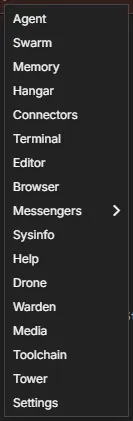
This is a different axis from the top-bar/Cmd+N actions above and from
Splitting below: those create a new pane. A pane’s own
+ adds a tab to the pane you’re already looking at. Use splits when
you want two things visible side by side; use tabs when you want to switch
between things in the same space.
Note this “tab” is scoped to the pane — a different concept from a window Tab tear-off below, which is about the browser-style strip at the very top of the whole window, not a pane’s own strip.
Inspired by cmux’s
Workspace → Pane → Surface → Panel model — see
GitHub: SPEC_PANE_TABS_UNIVERSAL_CMUX_REDESIGN
for the full design rationale.
Splitting
Section titled “Splitting”| Action | macOS | Windows / Linux |
|---|---|---|
| Split Right | ⌘D | Ctrl+Shift+D |
| Split Below | ⇧⌘D | Ctrl+Alt+Shift+D |
| Split in Direction | Ctrl+Shift+S + Arrow | Same |
A pane’s right-click menu has the same four splits. A new split opens beside the pane it came from:
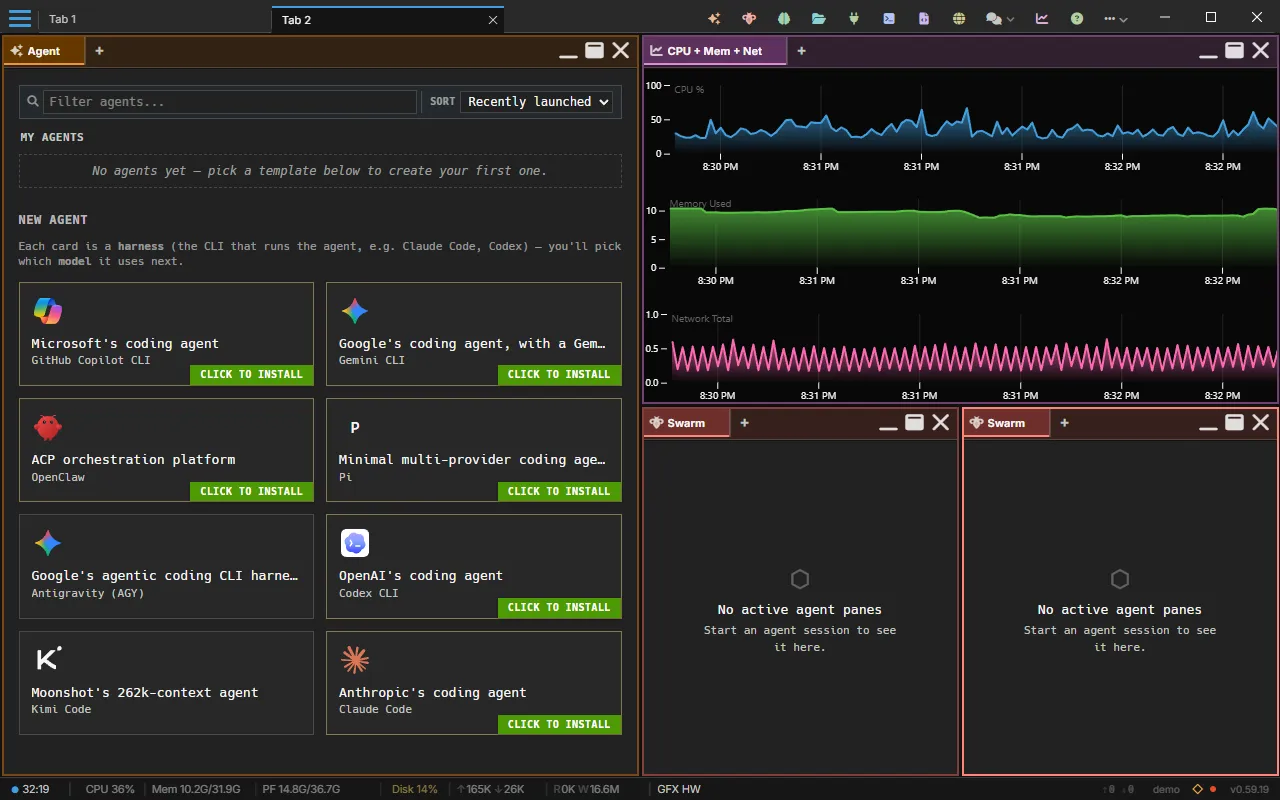
The pane menu
Section titled “The pane menu”Right-click a pane’s header for its menu: Copy, the four splits, Magnify Pane, Close Pane, Inspect Element (opens DevTools on the pane), and Pane Color.
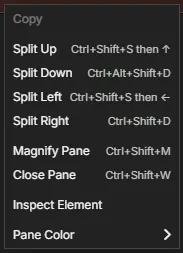
Magnify Pane (⌘M / Ctrl+Shift+M, the maximize button in the header, or a double-click on the header) enlarges the pane to fill the tab, hiding the others behind it, and the header’s maximize button becomes Restore. Do it again, or click Restore, to put it back.
The header’s buttons, from left to right, are Minimize (when the tab has more than one pane), Maximize and Close. Maximize is an outline window. Restore, on a maximized or a minimized pane, is a tiled layout: a frame with the pane’s own tile filled in. Close is an X that turns red while you hover it. A minimized pane shrinks to a chip the size of its header, in its place in the layout. A maximized pane can be minimized directly: it goes back to its slot as a header chip.
Navigation
Section titled “Navigation”| Action | Shortcut |
|---|---|
| Navigate between panes | Ctrl+Shift+Arrow |
| Focus pane N | Ctrl+Shift+1-9 |
| Next / previous pane | F6 / Shift+F6 |
| Swap with the pane in a direction | Ctrl+Alt+Shift+Arrow (⌃⌥⇧Arrow) |
| Resize: move a border | Alt+Shift+Arrow (⌃⌥⌘Arrow) |
| Close pane | ⌘W / Ctrl+Shift+W |
| Magnify pane | ⌘M / Ctrl+Shift+M |
Drag and Drop
Section titled “Drag and Drop”Rearrange panes by dragging their headers. You can:
- Reorder panes within a tab
- Move panes across tabs
- Drag panes between windows (cross-window drag supported on all platforms)
Dropping files onto panes
Section titled “Dropping files onto panes”Drag files from your file manager over AgentMux and it shows where they can go (frontend/app/drag/file-drop.ts, frontend/app/drag/DropIndicator.tsx):
- Every visible pane that would accept the files gets a faint dashed outline in the theme’s accent colour.
- The pane under the cursor is tinted and shows what the drop will do, for example “Drop 2 files to attach” or “Copy 2 files to <folder>”.
- A pane that takes files, but not these ones, shows why instead, for example “The editor opens text files”.
Four pane types take file drops. Other panes (browser, Swarm, Drone and so on) show a “no drop” cursor.
| Pane | What a drop does |
|---|---|
| Agent | Attaches the files to the message you’re writing (see Attaching files). For a container agent, or with attachments:enabled off, it copies them into the agent’s working folder instead and inserts an @name reference for each into the message box. |
| Terminal | Copies the files into the terminal’s working directory. It doesn’t type their paths. |
| Media | Shows the file. Takes exactly one image, video or audio file (png, jpg, jpeg, gif, webp, webm, mp4, mov, wav); the pane then watches that file’s folder like any other media pane. |
| Editor | Opens each text file in its own tab. Images, PDFs, Office documents, archives, audio and video are refused. |
Copies land directly in the pane’s working folder (crates/common/src/copy_into_dir.rs). A name that is already taken gets a numbered suffix: report.pdf, then report_1.pdf; .env, then .env_1. Folders are copied with everything in them, except symbolic links. Pasting files into a container agent’s message box copies them the same way, with the same notices and @name references.
If the operating system doesn’t give AgentMux a dropped file’s path, the file’s contents are used instead: they’re copied into the working folder, attached, or opened as an untitled editor tab. A media pane shows such a file but can’t watch its folder.
dnd:enabled turns off drops onto agent and terminal panes; see the file drop settings.
Tab tear-off
Section titled “Tab tear-off”Press Esc while dragging a window tab or a pane tab out of the window to cancel the drag, on Windows, macOS and Linux. To move a window tab into another AgentMux window instead, drop it on that window’s tab strip: the tab joins that window. Dropped anywhere else, it tears off, as in Chrome.
Drag a tab below the tab bar to move it into a new window of its own, in a new workspace. The window runs in the same AgentMux processes as the one it came from (same backend, settings, agents and browser profile); it is not a separate instance. Supported on Windows, macOS (v0.40+), and Linux (v0.41+, Wayland). See Multi-instance & dev mode for the full gesture.
Floating panes
Section titled “Floating panes”Drag a pane header outside the window to tear it off into a floating window — a detached window owned by the same AgentMux instance that shares the same backend sidecar. It is not a new instance; it’s a standalone window holding the pane you tore off.
| Control | Behavior |
|---|---|
| Drag pane header outside the window | Tears the pane into a floating window at the same size as the original pane |
| Drag the floating title bar | Move the floating window freely across monitors |
| Drag near a target window (slow to ≤400 px/s) | Dock indicator appears after 180 ms at that speed; release to dock |
| Maximize button in floater title bar | Expands the floater to the monitor work area; click again to restore |
| Tack button (thumbtack, “Always on top”), next to Maximize — Windows only | Keeps the floater above every AgentMux window. The button lights up in the theme colour while on. It applies only while AgentMux is the active app, so switching to another app lets that app cover it, and two tacked floaters behave normally toward each other. The tack survives a reload of the pane and is dropped when the pane is redocked (frontend/app/block/floating-ontop.tsx). |
| Close button in floater title bar | Closes the pane (same as closing a docked pane) |
Independent windows
Section titled “Independent windows”Every floating window is fully independent. Each one carries its own backend workspace, tab, and block state, so closing one window — or closing a pane inside it — never closes another window or affects the panes living elsewhere. A floating window only auto-closes when its own last pane is removed (the empty window has nothing left to show, so it tidies itself up).
This independence is structural: each floater is an unowned top-level window rather than a child of the window it came from, so there’s no cross-window cascade. Minimize, restore, and close are handled per source window explicitly, never propagated across separate floaters. See crates/cef/src/floating_pane.rs and floating-pane-workspace.tsx for the lifecycle.
Tear off from any window
Section titled “Tear off from any window”Tear-off works from every window, not just the first one you opened — the main window and any secondary window alike. Grab a pane’s header and drag it out to spin it into a floating window. A torn-off pane keeps its identity, so you can keep moving it from window to window without it losing state.
Redock into any window
Section titled “Redock into any window”Redock gesture: drag the floating pane’s title bar close to any open AgentMux window — including secondary windows — and a dock indicator appears once your cursor has stayed near that window for 180 ms at a slow-to-stopped speed (≤400 CSS px/s). The dwell gate prevents accidental docking during fast transits across the screen. Release while the indicator is showing to dock the pane into that window.
Redock resolves correctly into secondary windows because every window — including ones promoted from the prewarm pool — carries a stable backend identity (backend_window_id), so the drop target is always unambiguous. The resolution logic lives in commands/window/motion.rs.
Cross-window pane movement
Section titled “Cross-window pane movement”Because torn-off panes keep their identity, you can move a pane freely between windows: tear it off, dock it into another window, tear it off again, and dock it somewhere else. The pane’s state travels with it the whole way.
Why tear-off feels instant
Section titled “Why tear-off feels instant”New windows and torn-off panes are served from a hidden prewarm pool — a small set of pre-spawned, already-painted windows kept off-screen and ready to go. On tear-off, AgentMux promotes a pooled window in place instead of cold-starting a fresh one, which avoids the 150-300 ms gap that spawning a renderer process and painting the first frame would otherwise cost. The pool refills in the background after each use. On Windows this uses native WS_POPUP pool windows (CreatePanePoolWindowWin32Task in crates/cef/src/floating_pane.rs); macOS and Linux use frameless CEF Views windows. Pooled windows stay hidden until they’re promoted. Promotion is wired through commands/window_pool.rs.
Pooled windows are created with a dark theme background, so tearing off a pane comes up clean rather than briefly flashing white before the pane content paints.