
Connectors
Connectors is the app-wide pane for what agents connect to outside AgentMux: the accounts they sign in with, the MCP servers they use, and the remote hosts they run on. Its companion pane, Memory, holds what agents know and carry: Global and Personal Memory, Skills and Bundles.
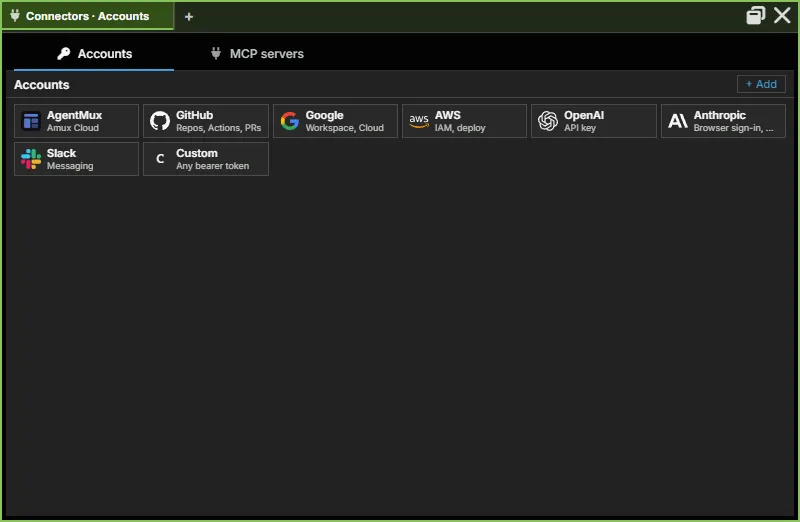
Connectors is a regular pane (icon: plug), opened from the widget bar like any other. It has three sections, as tabs along the top of the pane (frontend/app/view/connectors/connectors.tsx):
| Section | What it manages |
|---|---|
| Accounts | Sign-ins to providers and services: Claude, Codex, GitHub, Google Workspace, AWS, OpenAI, Anthropic, Slack, AgentMux Cloud and a custom bearer token. Each account can be bound to agents. |
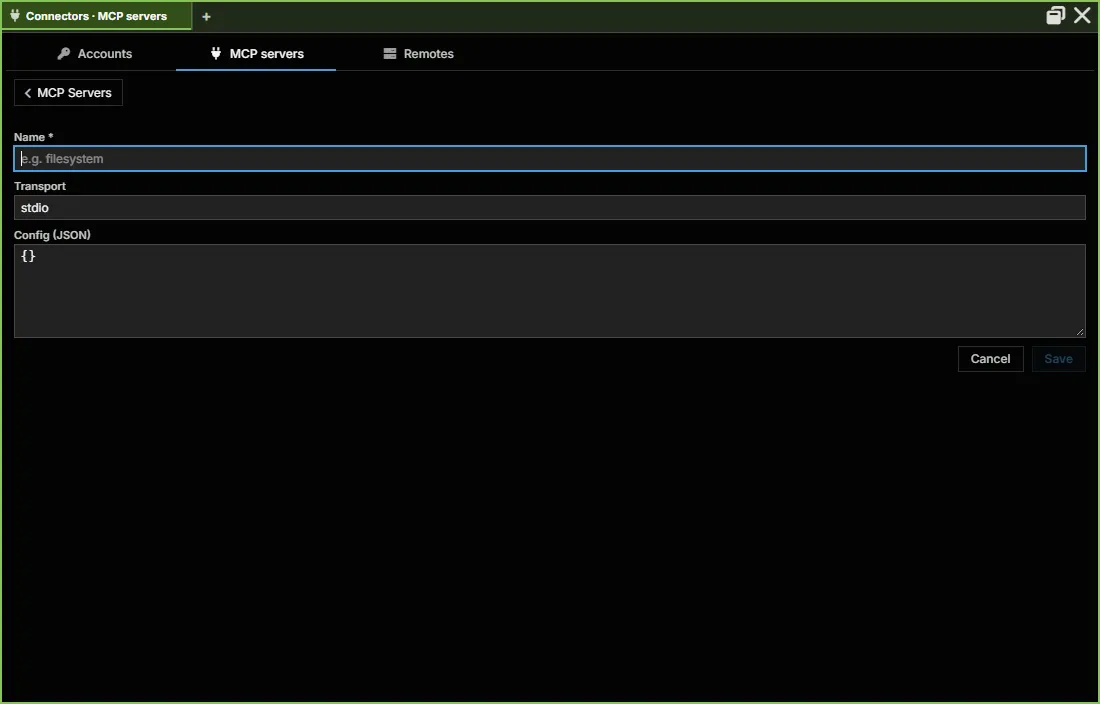
| MCP servers | The MCP server catalog: global servers plus any agent-private ones |
| Remotes | The SSH hosts and WSL distributions AgentMux can open terminals, files and agents on. See Remotes. |
Connectors opens on Accounts. The pane title names the section, for example “Connectors · Accounts”. In a narrow pane the tabs show only their icons; in a wide one they stop growing and sit at the left. Ctrl + mouse wheel zooms the pane.
An agent’s own linked accounts and MCP servers are shown in its Stash.
Opening Connectors
Section titled “Opening Connectors”- Widget bar: click Connectors. It is pinned by default. If a Connectors pane is already open in the tab, the click focuses it instead of opening another.
- Hamburger menu: click ≡ in the top tab bar and choose Connectors.
- Command palette: run Connectors. Searching for “accounts”, “mcp” or “remotes” also finds it.
- macOS app menu: Connectors….
Links elsewhere in the app open Connectors on the right section:
- An agent pane that can’t sign in shows Connectors → Accounts in its error row, and Accounts (switch / upgrade) when a usage limit is reached. See First Agent Setup → Sign in.
- In an agent’s Stash, the MCP Servers tab’s Browse all in Connectors → button and its edit it there link open MCP servers.
AgentMux moves panes saved under an earlier name, once, the first time it starts after updating: an Armory pane (the earlier pane that held both Connectors and Memory) becomes Connectors for Accounts and MCP servers and Memory for the rest, and a Remotes pane becomes Connectors → Remotes. A layout file that uses the old names opens the same way.
Accounts
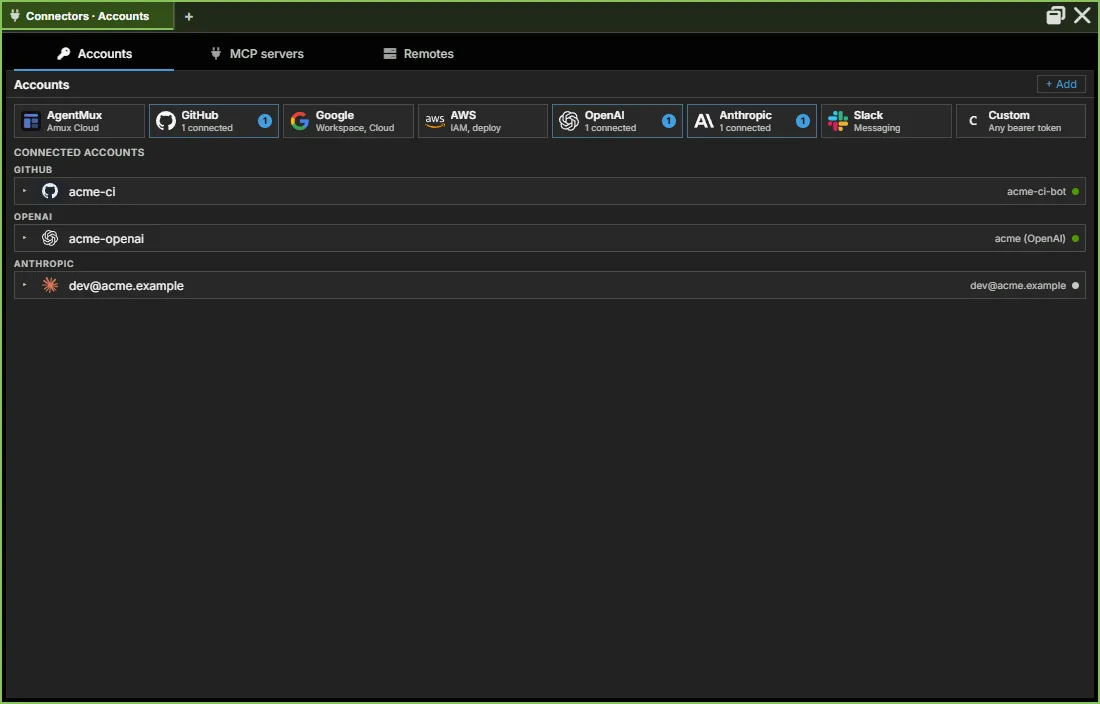
Section titled “Accounts”The Accounts section shows every service AgentMux can connect to. Each entry displays the service logo, connection status, and the active credential type.
Connecting a service
Section titled “Connecting a service”Click any service tile to connect or manage credentials:
- OAuth providers (Claude, Codex, Gemini, GitHub Copilot) — clicking Connect opens a PKCE or Device Flow browser login. The resulting token is stored in a per-account credential dir under
~/.agentmux/shared/identities/<account_id>/<provider>/(never plaintext via AgentMux). Tokens are validated against the live service on load — an expired token shows a ⚠ badge. - API key providers — clicking Connect opens an inline key entry field. The key is validated against the service before it’s saved and stored in the provider’s auth-config dir with restricted permissions.
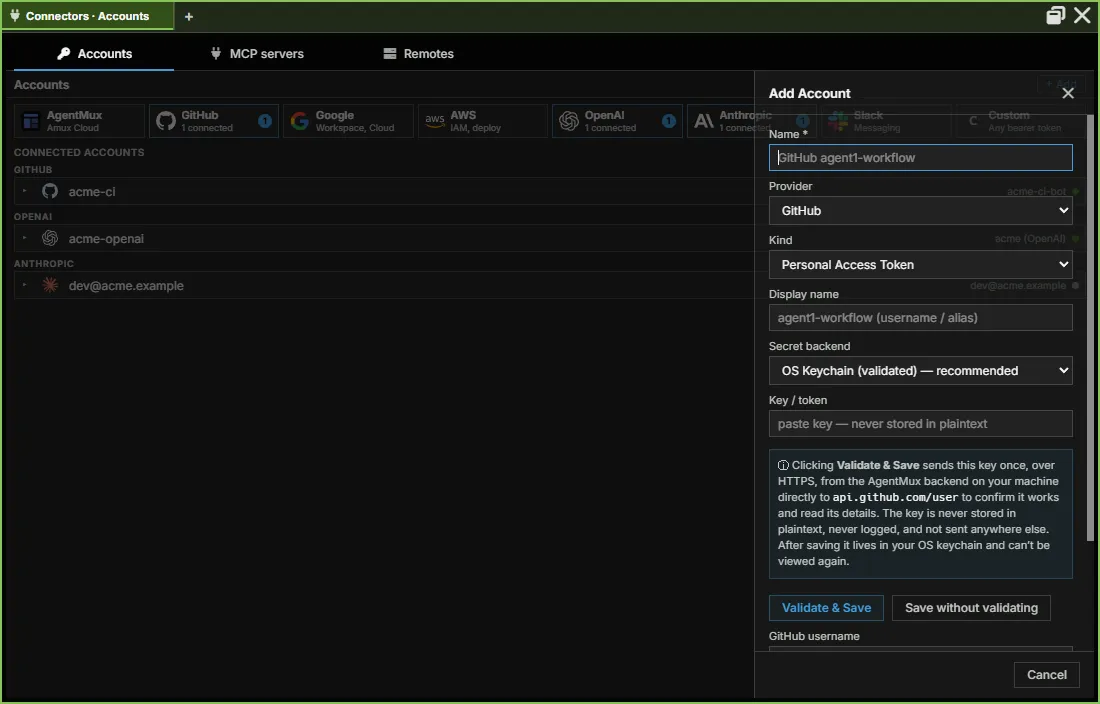
+ Add opens the Add Account form instead: a name, the provider and kind, a display name, where the secret is kept (the OS keychain is recommended), and Validate & Save or Save without validating.
See Auth flows for the full per-provider table and credential storage model.
Binding an account to an agent
Section titled “Binding an account to an agent”Right-click an account row for a “Bind to Agent” context menu — a second path to link an account to an agent, alongside connecting from the agent’s own launch flow. The submenu lists the current channel’s user-owned agents, with live binding annotations so multi-account disambiguation stays legible at a glance:
- A checkmark on an agent already bound to this account.
- A sublabel showing the currently-bound account’s name when it’s a different account (“bound: work-claude”), or “no account bound”.
- Agents with an open pane sort first with a running indicator; non-running agents are still bindable.
For CLI-OAuth accounts (Claude, Codex, Gemini, OpenClaw), only agents whose provider matches the account’s are offered. For service accounts (GitHub, AWS, etc.), every agent is a candidate. Clicking an agent binds the account to it — if that agent already has a different account bound for the same provider, the click rebinds it (the link is a one-per-provider upsert, same as Identity’s direct links). If the target agent has an open pane, the new credentials apply live (a forced, session-preserving respawn) rather than waiting for the next manual restart.
Credential storage
Section titled “Credential storage”Ambient provider credentials (used by agents with no Account explicitly bound) are stored account-wide under ~/.agentmux/shared/providers/<provider>/ — always global, unconditionally shared across every channel and version. Credentials for an explicitly-connected or bound Account, by contrast, follow a conditional default: shared account-wide on the stable channel, but isolated to that one channel by default everywhere else (a fresh non-stable channel — a task dev branch, or a local task package build — starts with no accounts). See Auth flows → Isolated auth by channel for the full rule and the override env var.
Relationship to Identities
Section titled “Relationship to Identities”The Accounts section is the credential store. To see which accounts a given agent is linked to, open that agent’s Stash → Accounts tab. See Identity & Accounts for how agents and accounts are linked.
MCP servers
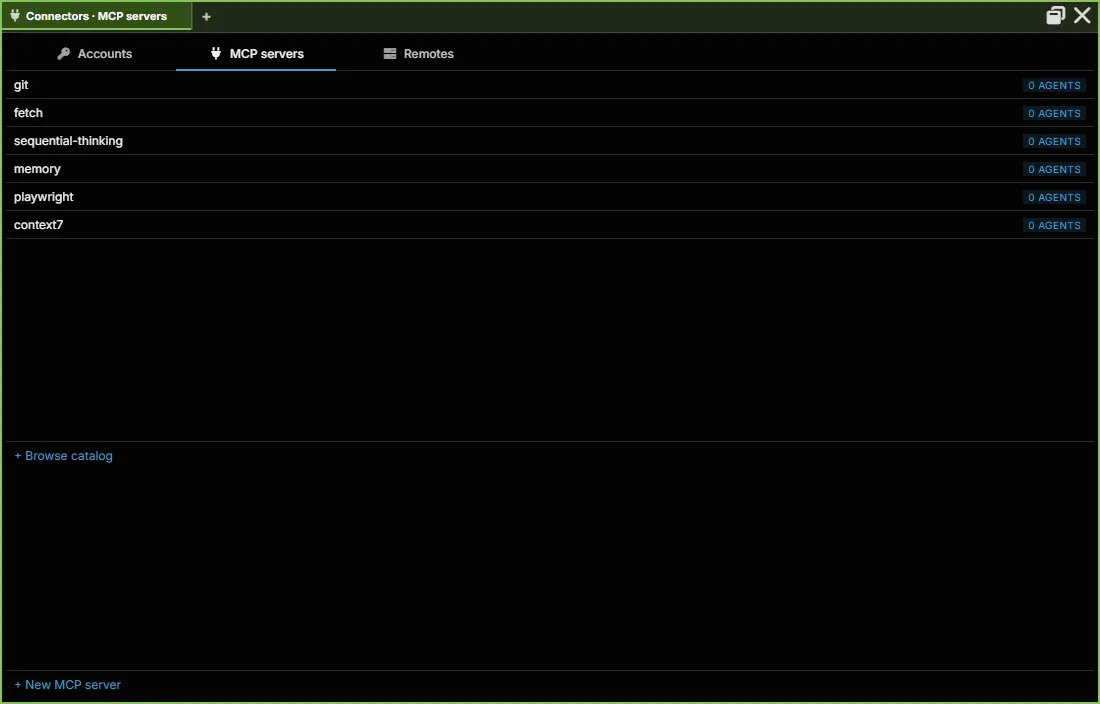
Section titled “MCP servers”The catalog of MCP Server primitives available to agents:
- Global servers — visible to and bindable by any agent. Created/edited here via the catalog (
mcp.catalog.upsert/mcp.catalog.delete). - Private servers — created by a specific agent (
mcp.upsert), visible only to that agent until bound elsewhere.
An agent’s own MCP Servers tab (Stash → MCP Servers) lists what that agent can see and lets it bind/unbind global servers or manage its own private ones. A bundle can also include MCP servers. See MuxAPI for the full RPC reference.
Remotes
Section titled “Remotes”The hosts AgentMux can open terminals, file browsers and agents on: the SSH hosts in your ~/.ssh/config, hosts you’ve connected to, and on Windows your WSL distributions (frontend/app/view/remotes/remotes-view.tsx). Besides the Connectors tab, it’s reached from Manage remotes… in a pane’s connection picker and in Hangar’s Places sidebar, and from Remote settings… in the header menu of a pane running on a remote, which opens it with that host’s row expanded.
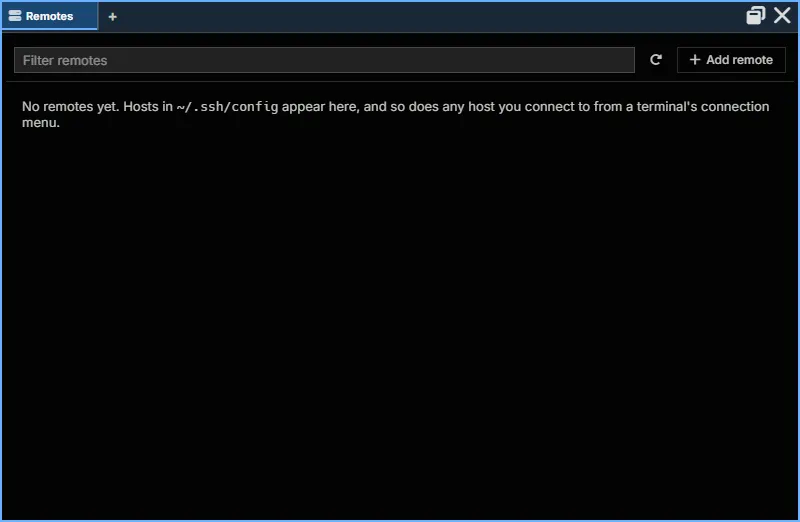
- Toolbar: Filter remotes, Refresh and + Add remote. Add remote takes the destination as you’d type it after
ssh(user@host:port, the port optional); Advanced sets a Name, an Identity file and a host to Connect through. Writing a new host into your ssh config waits for you to confirm it in a separate AgentMux window. - Sections: Pinned, SSH hosts, Recent, WSL and Hidden, each collapsible. With none yet, it reads “No remotes yet. Hosts in
~/.ssh/configappear here…”. - A row shows the host’s colour and connection status, its nickname, platform and helper state, how many sessions and agents use it, and buttons for New terminal and Browse files. Right-click a row for the same actions as a menu.
- Click a row to expand it: Connect / Disconnect, Sessions… (the host’s durable terminal sessions), Pin, Hide, Forget, Remove helper, Test connection and Edit in ssh config; settings for Nickname, Colour, Keep sessions alive and Install the helper; and the agents always allowed here (as you, with your SSH keys), each with Revoke.
SSH terminals that survive a dropped link
Section titled “SSH terminals that survive a dropped link”An SSH terminal can be durable: its shell keeps running on the host, inside AgentMux’s small helper there, so a dropped link, your computer sleeping or an AgentMux restart reconnects to the same shell instead of ending it.
Durable terminals need the helper on the host. The first terminal you open on a host without it asks first, in a separate AgentMux window: Install AgentMux’s helper on host? The helper is about 500 KB, goes in ~/.agentmux-remote on that machine and needs no root. It also lets Hangar browse the host’s files.
- Install installs it, and the terminal is durable.
- Not now opens a plain SSH terminal, as before. AgentMux doesn’t ask again for that host until it restarts.
- Tick Don’t ask again for host to make the answer stick: with Install it becomes Always for that host, with Not now Never.
All the terminals waiting on the same host share one question, so a restart with several of them open asks once. If the helper is later removed from the host, the next terminal asks again. A first terminal on a host it can’t reach (a mistyped name, a host that’s down) becomes a plain terminal showing ssh’s error after a few tries, instead of reconnecting for ever. An install that an agent’s pane needs is always asked about, whatever the settings say.
To remove the helper, expand the host’s row here and choose Remove helper. Sessions… lists the host’s durable terminal sessions.
The settings:
| Where | Setting | Choices |
|---|---|---|
Settings ▸ Terminal ▸ Keep SSH sessions alive (term:durable) | Whether SSH terminals are durable | On, else a plain terminal (the default: durable where the helper is or gets installed), Always (needs the helper), Never |
Settings ▸ Terminal ▸ Install the helper on new hosts (conn:helper) | Whether to ask before installing the helper | Ask first (the default), Always, Never |
| A host’s row here: Keep sessions alive and Install the helper | The same two, for that host only | They override the settings above |
Remote terminals in the tab strip
Section titled “Remote terminals in the tab strip”A terminal on a remote machine names the remote in its pane tab: the nickname you gave it here, or else the host name, with the remote’s icon. A Sysinfo pane on a remote reads “CPU · host”. The CPU and memory badge of an SSH or WSL terminal shows the remote shell’s own figures, measured on that machine.
Per-agent: the Stash
Section titled “Per-agent: the Stash”Some sections have a per-agent equivalent reached from inside an agent pane:
- Open any Agent pane → click the Stash icon (
toolbox) in the pane header. - A drawer opens under the pane header with tabs: Accounts · Personal Memory · MCP Servers · Skills · Bundles · Registration · Devices (
frontend/app/view/agent/components/AgentStashModal.tsx). Each tab is scoped to that agent rather than the app-wide catalog.
Accounts and MCP Servers are the per-agent side of Connectors; Personal Memory, Skills and Bundles are the per-agent side of Memory. The Registration tab shows the agent’s message-delivery registration, and Devices has Hide from paired devices, which leaves the agent out of what a paired device (the mobile app) lists and can watch.
See also
Section titled “See also”- Memory — Global and Personal Memory, Skills and Bundles
- Auth flows — per-provider OAuth flows, API key storage, and credential storage model
- Identity & Accounts — how agents and accounts are linked
- MuxAPI —
mcp.*andidentity.*RPC catalogs - First Agent Setup — connecting your first provider