
Your own widgets
A widget adds a kind of pane of your own to AgentMux: a dashboard for your project, a small tool, a view of some data you care about. It sits in the widget bar next to the built-in ones, opens in any pane, and can be pinned, split and moved like any other.
You can write one yourself (see Build a widget), install one someone gave you, or ask one of your agents to build it for you.
A widget runs only after you approve it
Section titled “A widget runs only after you approve it”Installing a widget copies it in; it doesn’t run yet. AgentMux first shows you what it is and what it asks for:
- its name, version, author and kind;
- who signed it, if anyone (below);
- each permission it asks for, in plain words (the table below);
- for a trusted widget, instead of permissions, a warning that it runs as part of AgentMux with full access.
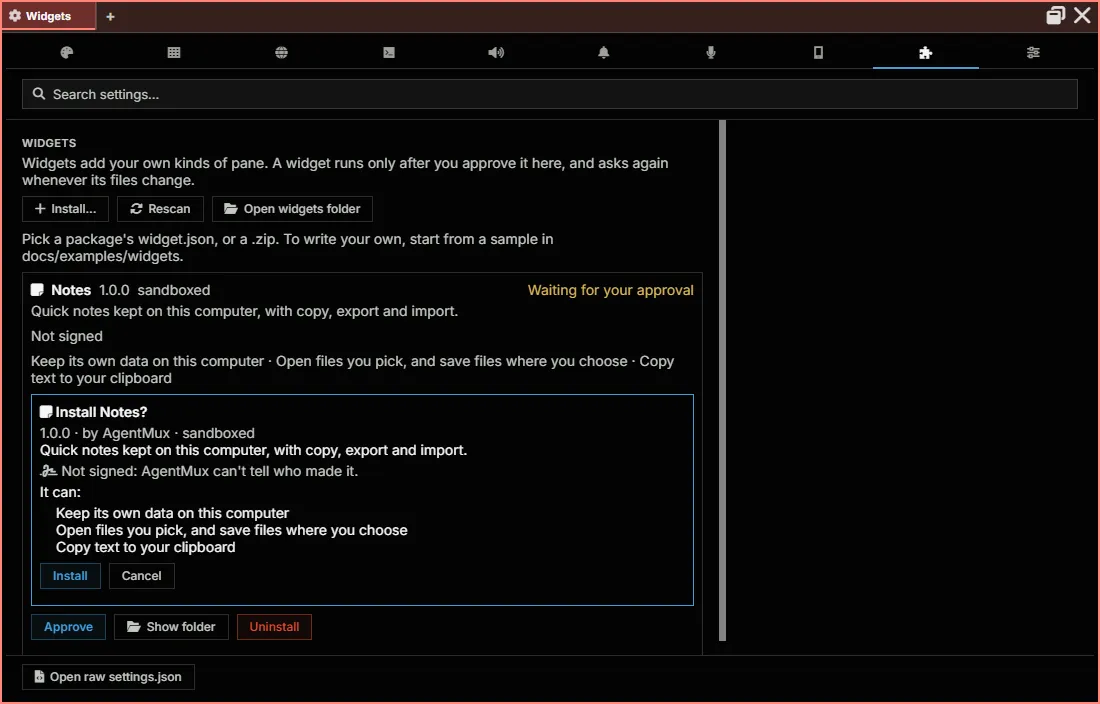
It runs once you approve it, and only the version you approved. If any of its files change later (an update, an edit), it stops running and asks you again, showing the new version.
Only you can approve a widget, in AgentMux’s own window. An agent can install one, but can’t approve it; neither can any program that only talks to AgentMux’s server.
Who made it: signed widgets
Section titled “Who made it: signed widgets”A widget’s author can sign it. The prompt then shows the key it was signed with as a short fingerprint, like K7Q2-MZ4D-PX3A-9TWE. Authors who want their widgets recognised publish their fingerprint, so you can compare.
AgentMux remembers, for each publisher (the part of the widget’s id before the dot, acme in acme.pr-dashboard), the key of the first signed widget of theirs you approve. After that:
- another widget of theirs signed with the same key says so;
- one signed with another key, or not signed at all, gets a warning: “Not signed by the key that signed your other acme widgets. It may not be from the same author.” Its button reads Install anyway, and Don’t install is the default.
Approving a widget like that doesn’t change the key AgentMux remembers. If an author tells you they really changed keys, forget the old one in Settings → Widgets → Publisher keys, and the next signed widget of theirs is remembered instead.
A signature tells you who published a widget, not what it does: its permissions are still all a sandboxed widget can do. An unsigned widget isn’t unsafe; AgentMux just can’t tell who made it.
Sandboxed and trusted widgets
Section titled “Sandboxed and trusted widgets”Most widgets are sandboxed. A sandboxed widget is a web page running in an isolated frame in its pane. It can’t read the rest of AgentMux, your other panes, or your files, and it can’t load code from the internet. It reaches anything outside its pane only through the widget API, and only for the permissions you approved:
| Permission | What the prompt says |
|---|---|
| (none) | It uses its own pane: title, buttons, menu, notifications, the theme, and the pane’s own state |
storage | Keep its own data on this computer |
net:<origin> | Connect to that address, for example https://api.github.com, and nothing else |
files | Open files you pick, and save files where you choose |
clipboard:write | Copy text to your clipboard |
panes | Open other kinds of panes |
agents:read | See your agents’ names and whether they’re working |
agents:send | Send messages to your agents. An agent acts on what it’s told, so only allow this for a widget you trust |
A trusted widget runs as part of AgentMux itself, with full access to everything AgentMux can do. Install one only if you trust its author.
Install a widget
Section titled “Install a widget”- Open Settings → Widgets and click Install….
- Pick the widget’s
widget.json, its folder, or a.zipof it. - Read the prompt and click Install to approve it, or Cancel.
Installed widgets live in ~/.agentmux/widgets/, one folder each. Every AgentMux installation on your computer sees the same widgets, but each asks for its own approval.
Once approved, the widget appears in the widget bar’s more menu and in any pane’s + menu. Pin it to the bar from there.
From the catalog
Section titled “From the catalog”Settings → Widgets → Browse the catalog lists the widgets in the AgentMux widget catalog: sandboxed widgets, each signed by its publisher and reviewed before it’s listed. Each shows its version, author, the key it was signed with, and what it may do, with Install, or Update when you have an older version.
Installing one copies it in, and its approval prompt opens at once, with a line saying it’s exactly what the catalog lists. It runs only once you approve it, like any widget: the catalog is a second check, never an approval. AgentMux checks the catalog’s own signature, downloads only from the catalog’s site, and checks each widget’s files and its author’s signature against the catalog before it asks you.
From a bundle
Section titled “From a bundle”An agent bundle can carry the sandboxed widgets its agents use. Importing it lists them with who signed each and what it may do; each one you keep asks for your approval, as “The bundle ”…” wants to install …”. A bundle never approves a widget for you.
When an agent builds one for you
Section titled “When an agent builds one for you”Ask an agent for a widget (“make me a pane that shows my open pull requests”) and it can build one in its workspace and install it with its WidgetInstall tool. You then see a prompt naming the agent and showing exactly what the widget asks for:
- Install approves it, and the agent can open it next to its own pane.
- Don’t install leaves it in Settings → Widgets, not approved; the agent hears that you declined.
Each new version the agent installs asks you again.
Manage your widgets
Section titled “Manage your widgets”Settings → Widgets lists every widget and its state:
| State | Meaning |
|---|---|
| Approved | It runs. |
| Needs approval | Installed, never approved. Click Approve to see the prompt. |
| Changed since you approved it | Its files changed. It doesn’t run until you approve the new version (Review and approve). |
| Off | You turned it off. Its panes show that it’s off until you turn it on again. |
| Can’t be loaded | Its widget.json has an error, shown in the list. |
From the same list you can Turn off a widget or Turn on again, Show folder to see its files, and Uninstall it. Open widgets folder shows where they all are. Uninstalling deletes its folder, its approval, and any data it kept (AgentMux asks first).
Commands and status bar items
Section titled “Commands and status bar items”A widget can add entries to the command palette (under Widgets) and small items to the status bar. They come with the widget and leave when you turn it off or uninstall it. A widget’s status bar item always names the widget in its tooltip; running one of its commands, or clicking its item, opens or focuses the widget’s pane.
Widgets from widgets.json
Section titled “Widgets from widgets.json”A widget added with a module entry in widgets.json, the way it was done before widget packages, is listed as a trusted widget and asks for approval like any other. It keeps working as it did once you approve it.
An entry in widgets.json that should appear only inside its group’s flyout (not on the bar, in more or in a pane’s + menu) sets "display:grouponly": true. The older name, display:hidden, still works. It is not the same as hiding a widget yourself in Settings ▸ Widgets, which is saved in settings.json as widget:hidden.
See also
Section titled “See also”- Build a widget: your first widget in five minutes.
- Widget API reference: the manifest, the SDK and every method.
- Widget security: what the sandbox and the approval protect, and how.