
Workspaces
A workspace is a named set of windows, each with its tabs and panes. One workspace is open at a time, and everyone starts in Default Workspace. Every window you open belongs to the open workspace.
“Workspace” here never means an agent’s folder: the folder an agent works in (AGENTMUX_AGENT_WORKDIR, under ~/.agentmux/agents/) is the agent’s own and is the same in every workspace.
It saves itself
Section titled “It saves itself”There is no Save button. AgentMux saves the open workspace inside AgentMux as you work:
- about a second after you change its windows, tabs, panes or their arrangement (a long drag-resize is saved at least every 15 seconds while it goes on);
- within 30 seconds when only a pane’s own settings changed (an agent pane updates them as it works);
- at once when you close a window, switch workspace, quit, shut down the computer, or switch to another app.
What’s saved: every window’s tabs, split panes and pane settings, its place on the screen, name, theme and opacity, and which agent each agent pane shows, so the agent resumes its conversation. Running processes and terminal scrollback aren’t part of it, and an agent’s conversation stays in the agent’s own history.
AgentMux keeps the last copy that opened cleanly as well. If the latest save doesn’t open, it uses that copy (or the one kept from before an update) and says so: “Default Workspace opened from an older copy”.
After an update: the first launch of a new version copies the workspaces of the newest older version on the same channel, once. From then on each version keeps its own. Two versions running side by side never share workspaces. See Running multiple instances.
When a window opens with the default layout because nothing was restored, AgentMux can offer the newest layout another build saved in the last 14 days, in a notice such as “Restore the layout from 0.60.4 (closed 03:28 today): 3 tabs, 8 agents?” with Restore and Not now. It never offers a build that is running at that moment.
Quitting doesn’t close windows. Every window that was open when you quit opens again at the next launch, with its tabs and panes. After a crash, the next launch reopens the workspace from its last save.
Windows in a workspace
Section titled “Windows in a workspace”Click the version number at the right end of the status bar to open the instance panel. Its window list is the open workspace’s: headed by its name and how many windows it has (for example “Default Workspace — 3 windows”), then one list of its windows, open and closed together, each keeping its place, with the closed ones greyed.
| Row | Click it | Its button | Right-click |
|---|---|---|---|
| ● This window, ○ another open window | Focuses the window. Double-click (or F2) renames it | Remove from workspace (trash) | — |
| ◌ A closed window, with when it closed (“closed 14:02”, “closed yesterday 22:10”, or the date) | Reopens it | Reopen | Remove from workspace |
Double-click the heading (or press F2 on it) to rename the workspace.
Closing a window keeps it
Section titled “Closing a window keeps it”Closing a window (its close button, AgentMux logo menu → Exit, the palette’s Close Window) doesn’t remove it from the workspace. Its agents keep running with no window, its shells and other panes stop, and it stays in the list as a closed window (“2 agents keep running without a window”). Reopen opens it where it was, with the same panes, and its agents are back in their tabs, mid-turn or idle. Closed windows are kept until you remove them. See Closing and shutting down.
Two closes don’t make a closed window:
- The last open window. Closing it quits AgentMux. The window stays open in the workspace and opens again at the next launch.
- A window with nothing of yours in it: no panes, or only the starting panes, untouched. It’s deleted as it closes.
Removing a window
Section titled “Removing a window”An open window’s Remove from workspace closes the window and deletes its tabs and panes. The agents in it stay in My Agents, with their conversations. It asks first only when an agent in the window is mid-turn (“Korp is working. Remove this window from Default Workspace?”). The button is disabled on the only open window (“The last window; use New Workspace to start over”).
To remove a closed window without reopening it, right-click its row and choose Remove from workspace.
When an agent is working
Section titled “When an agent is working”By default, closing a window doesn’t stop its agents, so it doesn’t ask. It asks first only when the close would stop an agent that is mid-turn: closing the last window, or any close with agents:always_available turned off. The question is “Korp is working. Close this window?”, “This stops 1 agent. The window stays in Default Workspace, and you can reopen it from the version panel.” For the last window it says “AgentMux closes; the window stays in Default Workspace and opens again at the next launch.” instead.
Tick Don’t ask again, or turn off Warn before closing a window with working agents in Settings → Window & Panes (window:confirmcloseworking), to close without asking. On Windows and Linux a close the operating system starts (Alt+F4, the taskbar) asks the same question, and the tray’s Quit AgentMux asks one of its own (see Quitting AgentMux); the setting turns both off too. On macOS, quitting from the app menu or with Cmd+Q doesn’t ask.
The Workspaces menu
Section titled “The Workspaces menu”AgentMux logo menu → Workspaces:
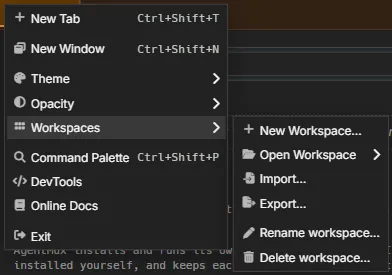
| Item | What it does |
|---|---|
| New Workspace… | Asks for a name, suggesting the first free “Workspace 2”, “Workspace 3”, …, then switches to a new workspace with one window showing the starting panes. |
| Open Workspace › | Every workspace, the one opened most recently first, the open one checked. Choosing another one switches to it. |
| Import… | Opens a workspace file as a new workspace. See Export and import. |
| Export… | Writes the open workspace to a file. |
| Rename workspace… | Renames the open workspace. Double-clicking the heading of the instance panel’s window list does the same. |
| Delete workspace… | Lists the other workspaces; choose one, then confirm (“Delete “Reviews”?”, “Its 3 windows and their tabs and panes are deleted. Its agents stay in My Agents, with their conversations.”). The open workspace can’t be deleted: open another one first. |
The command palette has New Workspace…, Open Workspace… (the same list in a dialog), Rename Workspace…, Export Workspace… and Import Workspace…, under Workspace. See Main menu & command palette.
Switching workspaces
Section titled “Switching workspaces”Opening another workspace (from Open Workspace, New Workspace… or Import…) closes the one that’s open first:
- With
agents:always_availableon, the default, AgentMux doesn’t ask: no agent is stopped. With it off, and an agent in the open workspace mid-turn, AgentMux asks: “Korp and Loap are working. Close Default Workspace?”, “This stops 2 agents. Default Workspace keeps its windows, and they open again, agents resuming, when you go back to it.” Close and switch goes ahead. This is the same warning as closing a window, with the same Don’t ask again and setting. - The open workspace is saved. Its agents keep running with no window, its shells and other panes stop, and its other windows close. Nothing is deleted: its windows stay open in its record, so they all come back when you open it again, with its agents back in their tabs.
- The other workspace’s open windows open. The window you switched from shows its first window, so the screen doesn’t go empty; the rest open beside it. Its closed windows are listed closed.
The next launch opens the workspace that was open last. New Window opens a window with the starting panes in the open workspace.
Export and import
Section titled “Export and import”Export… writes the open workspace to a *.agentmux-workspace.json file. The Save dialog starts in ~/.agentmux/shared/workspaces/. The file holds every window, in the order of the list, each with its name and whether it was closed, but not the references that resume an agent’s conversation on this computer. It’s a snapshot: later changes to the workspace aren’t written to it. If something in it is worth checking before you share the file, the notice that confirms the export lists it.
Import… opens an exported workspace, or a *.agentmux-layout.json file saved with the Save layout… of earlier versions, as a new workspace. Before it opens anything it shows a preview: the windows and tabs, each tab’s panes, anything that can’t be reproduced exactly here, and every terminal command the file would run, with Run these commands (ticked only for a file this AgentMux saved in its own folders; for any other file it says “This file wasn’t saved by this AgentMux. Check these commands before running them.”). Import then switches to the new workspace, named after the file (“Ops”, or “Ops 2” when you already have an “Ops”).
Every pane of an imported workspace is new. The agent panes of the windows that open start their agents; an agent pane in a window that was closed shows the agent picker when you reopen it. An agent never gets a second pane from an import: if it already has one in the windows that open, the pane in the imported workspace shows the agent picker, and a notice says where the agent already is.
See also
Section titled “See also”- The window: the status bar and the instance panel
- Main menu & command palette
- Persistence: where the workspace is saved
- Glossary: workspace